
Can I choose how many leads to export?
Evaboot exports the whole search or list; there is no count selector. Pick the leads in Sales Navigator first.
Your options
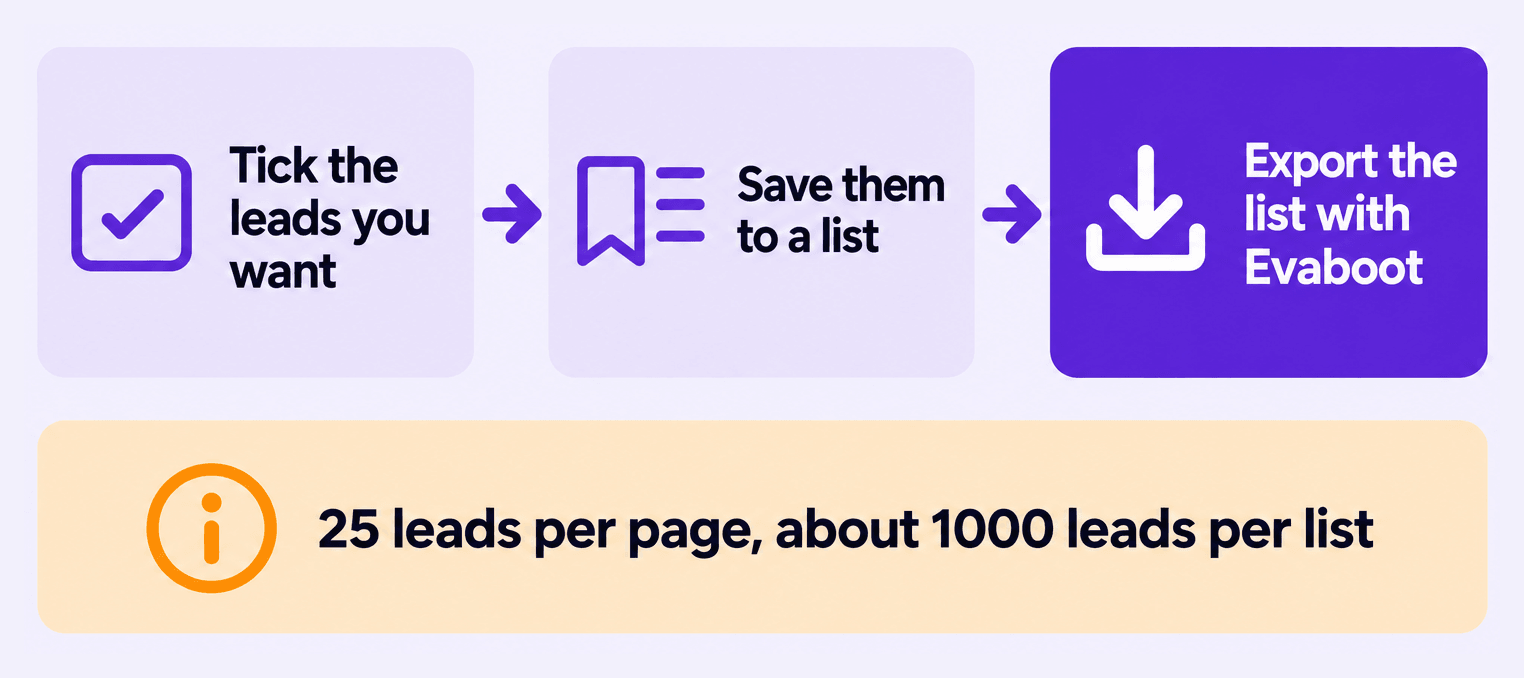
Section titled “Your options”- Build a lead list (recommended) — tick the leads you want in Sales Navigator, save them to a list, and export the list. A list works better than stacking filters.
- Narrow with filters — segment your search results in Sales Navigator, then export directly with Evaboot.
- Large searches (2,500+) — split the search rather than exporting it all at once. An AI assistant connected to the Evaboot MCP server can build the lists or split the search for you: see How to Automate Lead & Account Lists Creation?.
Build a list
Section titled “Build a list”Say your search has 2,500 results and you want 1,000 of them.
- Tick the checkboxes next to the leads/accounts.
- Click Save to list.
- Click Create new list.
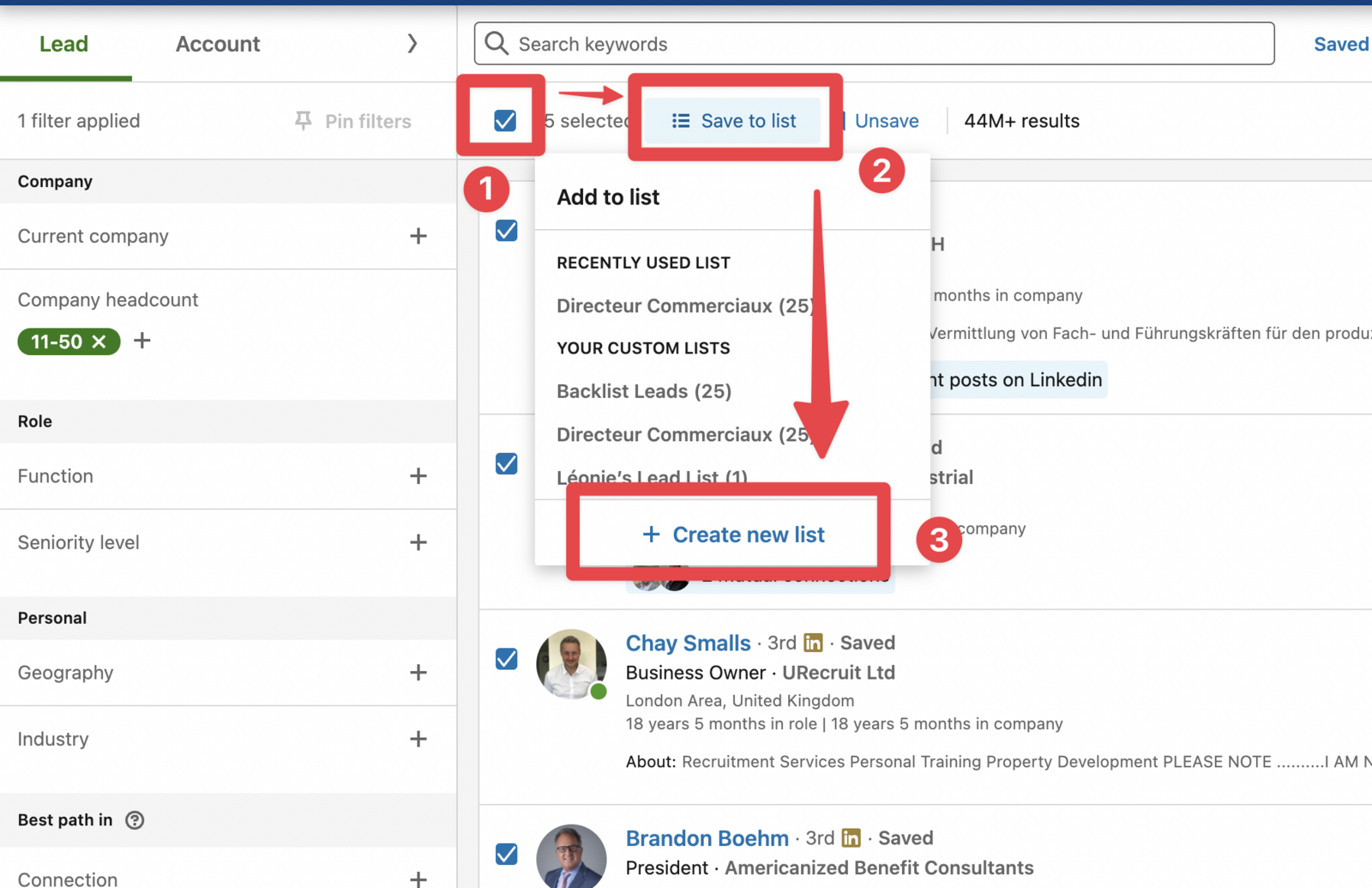
You can only do this page by page, 25 leads per page. Repeat it to build a large list.
A saved lead list holds about 1,000 leads at most. That is a LinkedIn limit, not an Evaboot one.
Export the list
Section titled “Export the list”- Export the list with Evaboot once it’s ready.
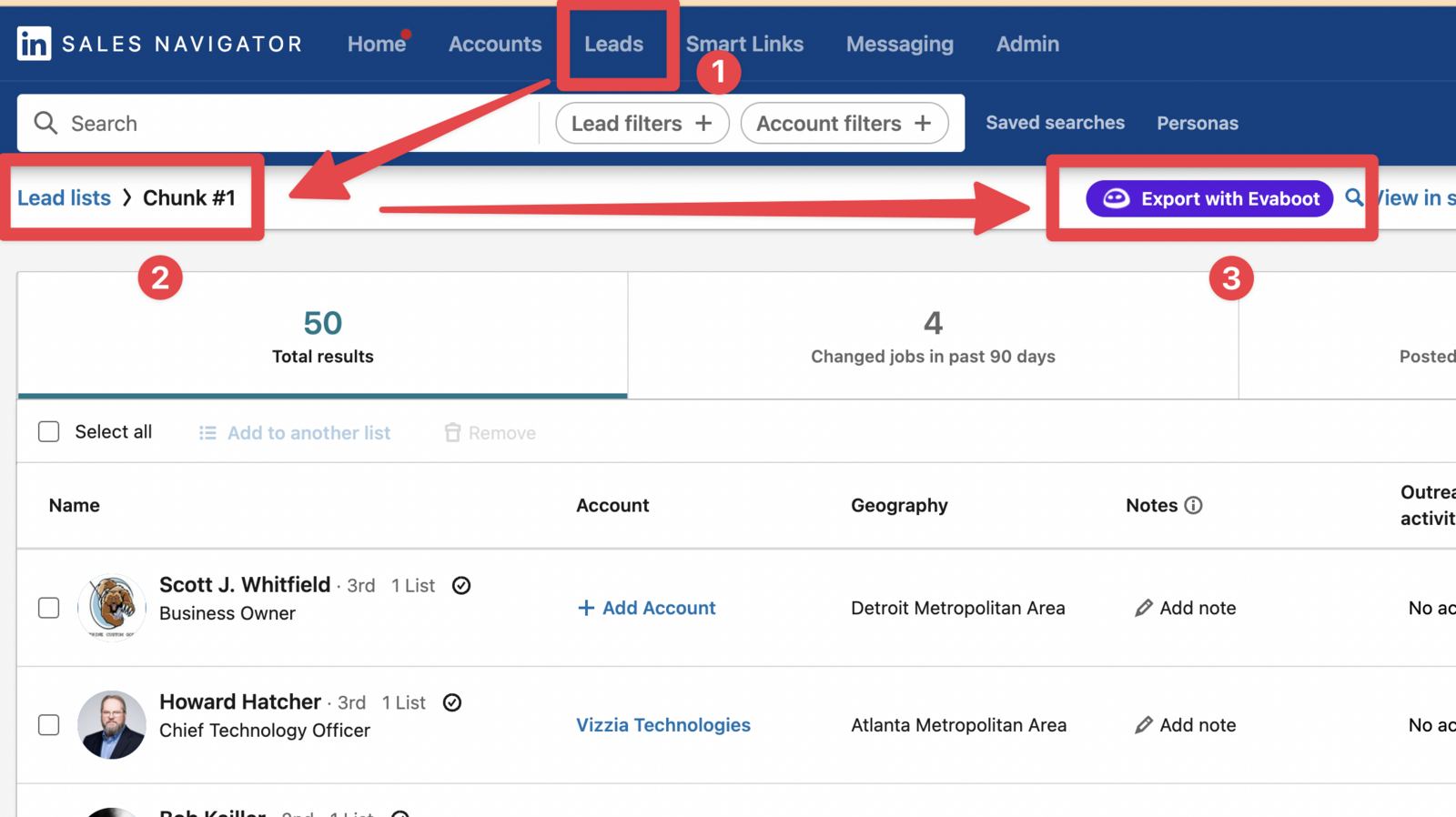
Export the rest later
Section titled “Export the rest later”A lead exported twice is charged twice. To export the rest of the search another day without paying twice, split the search before exporting.
On higher Sales Navigator plans, you can also exclude the list you already exported from the search. Both methods: How Do I Avoid Exporting the Same Leads Twice?