
How do I set up my Zapier integration?
Add the Evaboot app to a Zap and connect it with your API key. Evaboot then starts your Zaps when a job finishes, and runs exports and email searches from them.
Before you start
Section titled “Before you start”- A Zapier account. Two-step Zaps work on the free plan; three-step templates need a paid plan.
- Your Evaboot API key, from the API key page.
In Zapier: add Evaboot to a Zap
Section titled “In Zapier: add Evaboot to a Zap”- Pick a template, or create a new Zap. Ready-made Zaps are on the Evaboot Zapier page. Each opens in Zapier with its apps and events already set.
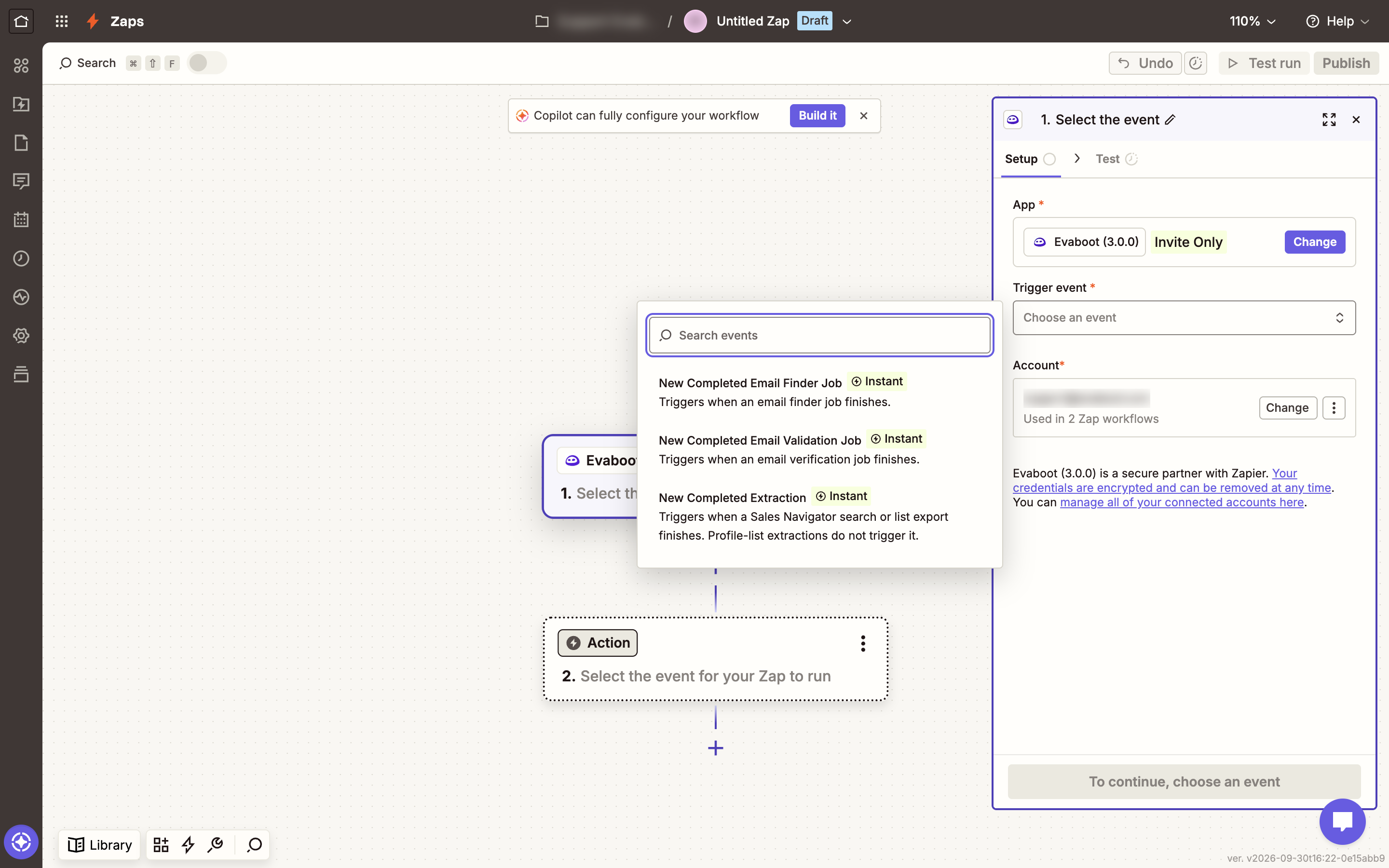
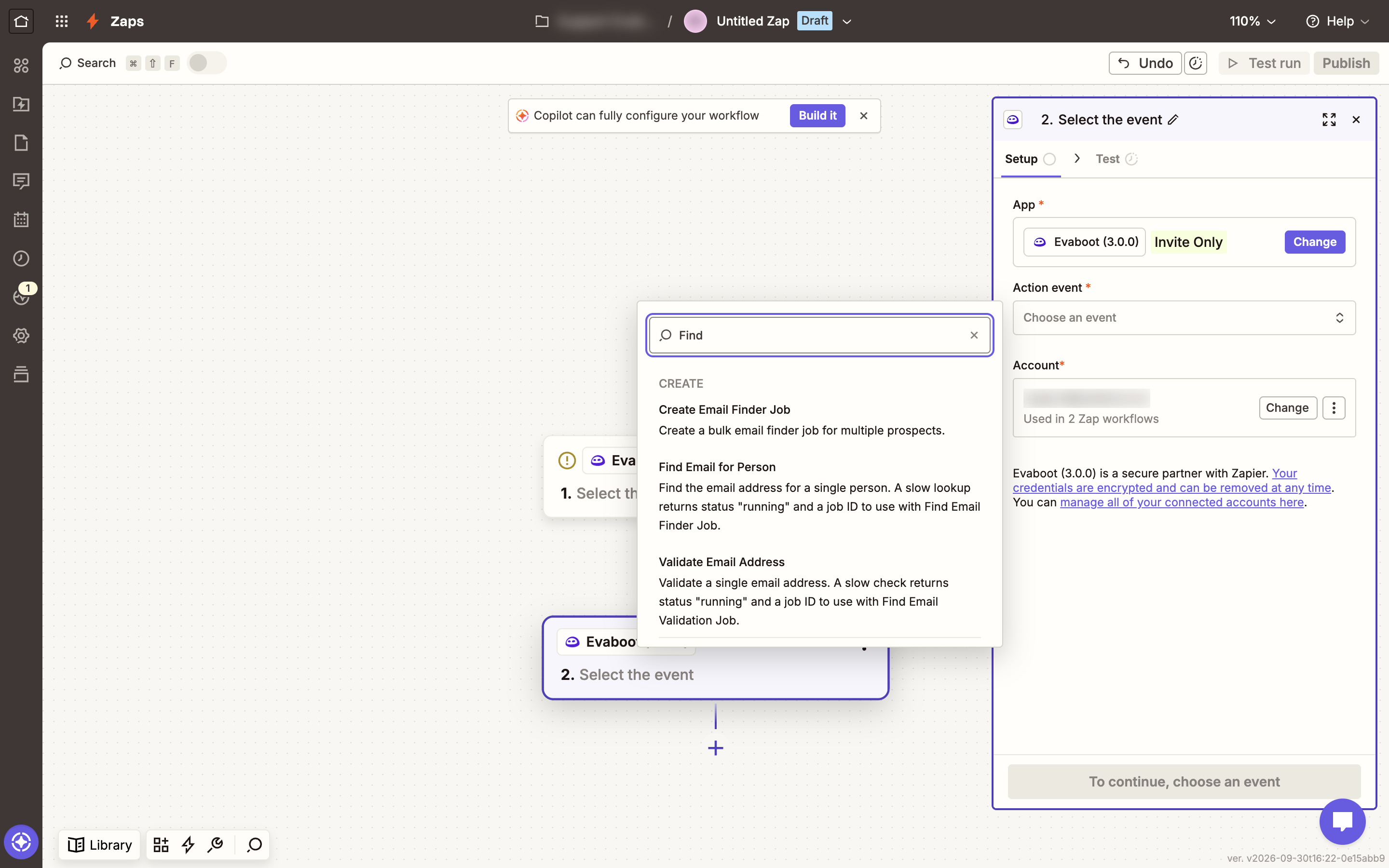
- Choose Evaboot as the trigger or action app. Search for
Evabootin the app list. - Pick an event.
- Triggers: New Completed Extraction, New Completed Email Finder Job, New Completed Email Validation Job.
- Actions: Create URL Extraction, Create Profile List Extraction, Extract Single Profile, Find Email for Person, Create Email Finder Job, Validate Email Address, Create Email Validation Job.
- Searches: Find Extraction, Find Email Finder Job, Find Email Validation Job, Get Account Quota.
- Click Sign in and paste your Evaboot API key.
- Map the fields, test each step, then publish the Zap.
How the triggers work
Section titled “How the triggers work”- Turning on a Zap that starts with an Evaboot trigger registers it as an integration in Evaboot.
- Each time an export or email job completes and is paid, Evaboot sends the results to Zapier straight away.
- An export arrives as one item with its leads in a
Prospectslist. Use Create Multiple Spreadsheet Rows in Google Sheets to get one row per lead. - Turning the Zap off removes the integration.
If it didn’t work
Section titled “If it didn’t work”- Zapier says the API key is invalid — copy it again from the API key page. Paste it without spaces.
- You can’t find Evaboot in Zapier — open Integrations, switch to the Automations tab and click Install the Zapier app.
- The Zap never fires on real data — the Zap must be published and turned on. Only exports and jobs that finish after that are sent.
Another way: a Catch Hook webhook
Section titled “Another way: a Catch Hook webhook”This route needs Webhooks by Zapier, a premium app.
- In Zapier: create a new Zap with Webhooks by Zapier as the trigger and the Catch Hook event.
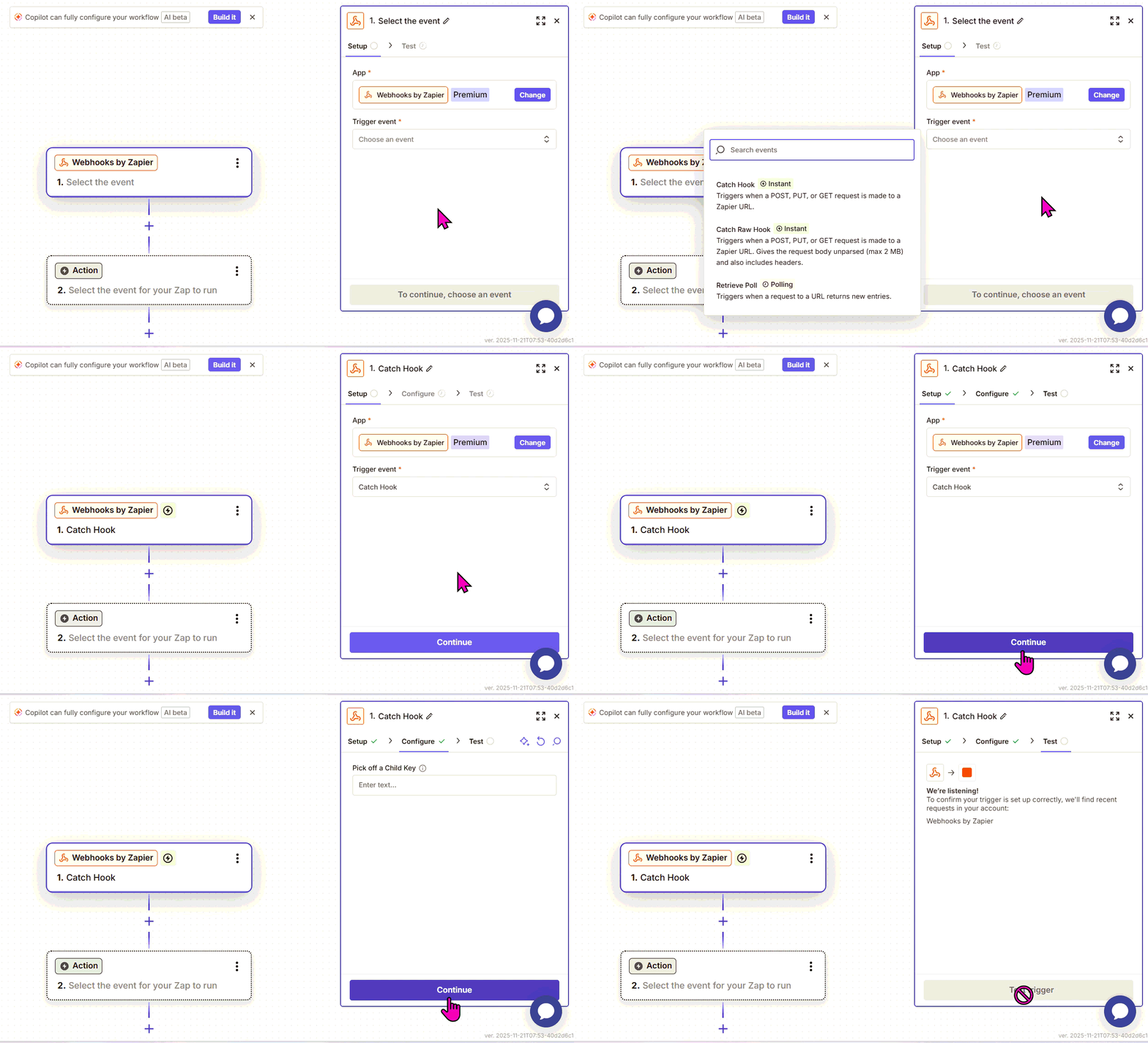
- Copy the webhook URL Zapier generates. Leave the Zap open on the Test step.
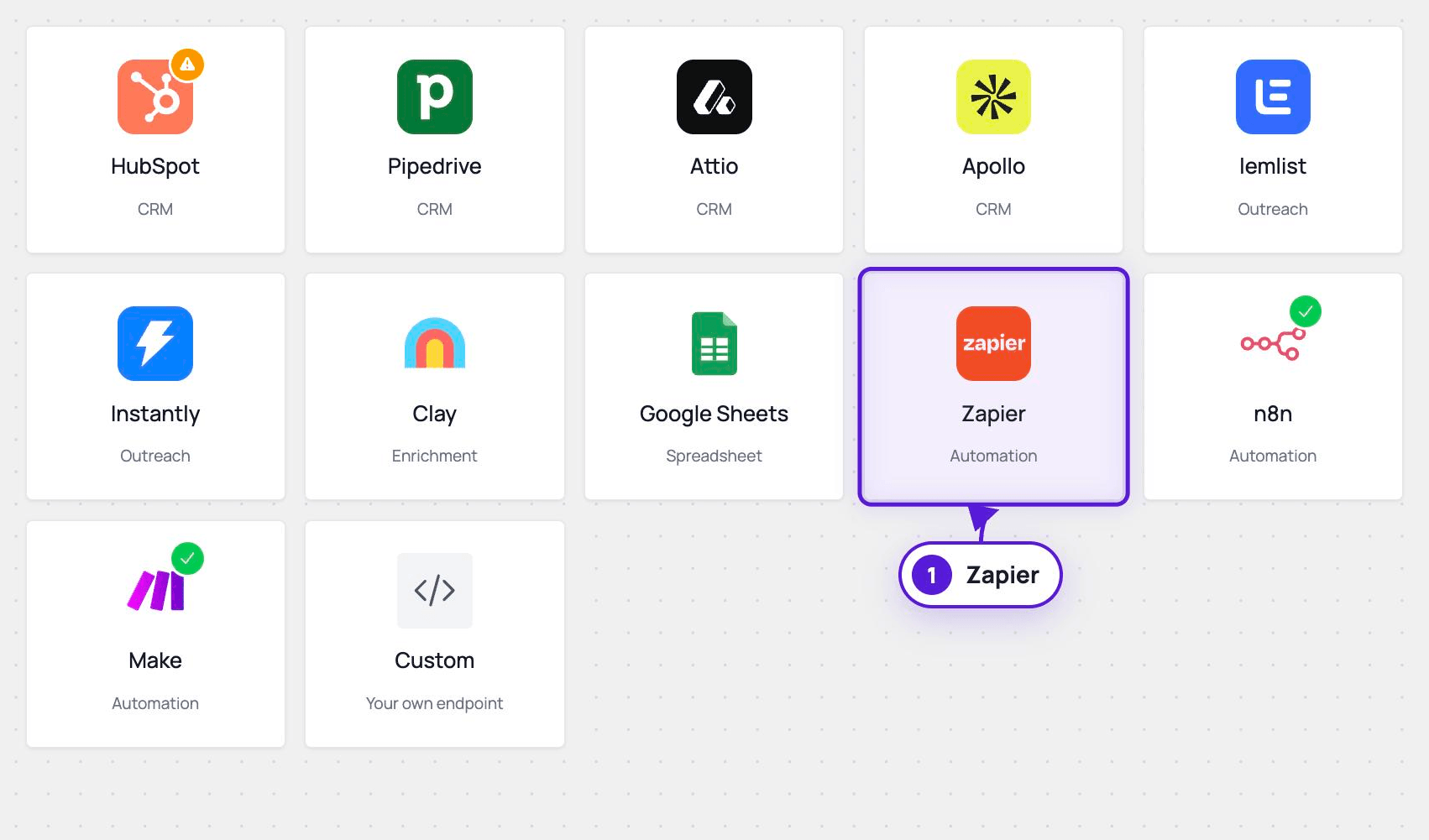
- In Evaboot: open Integrations, click New integration, and choose Zapier.
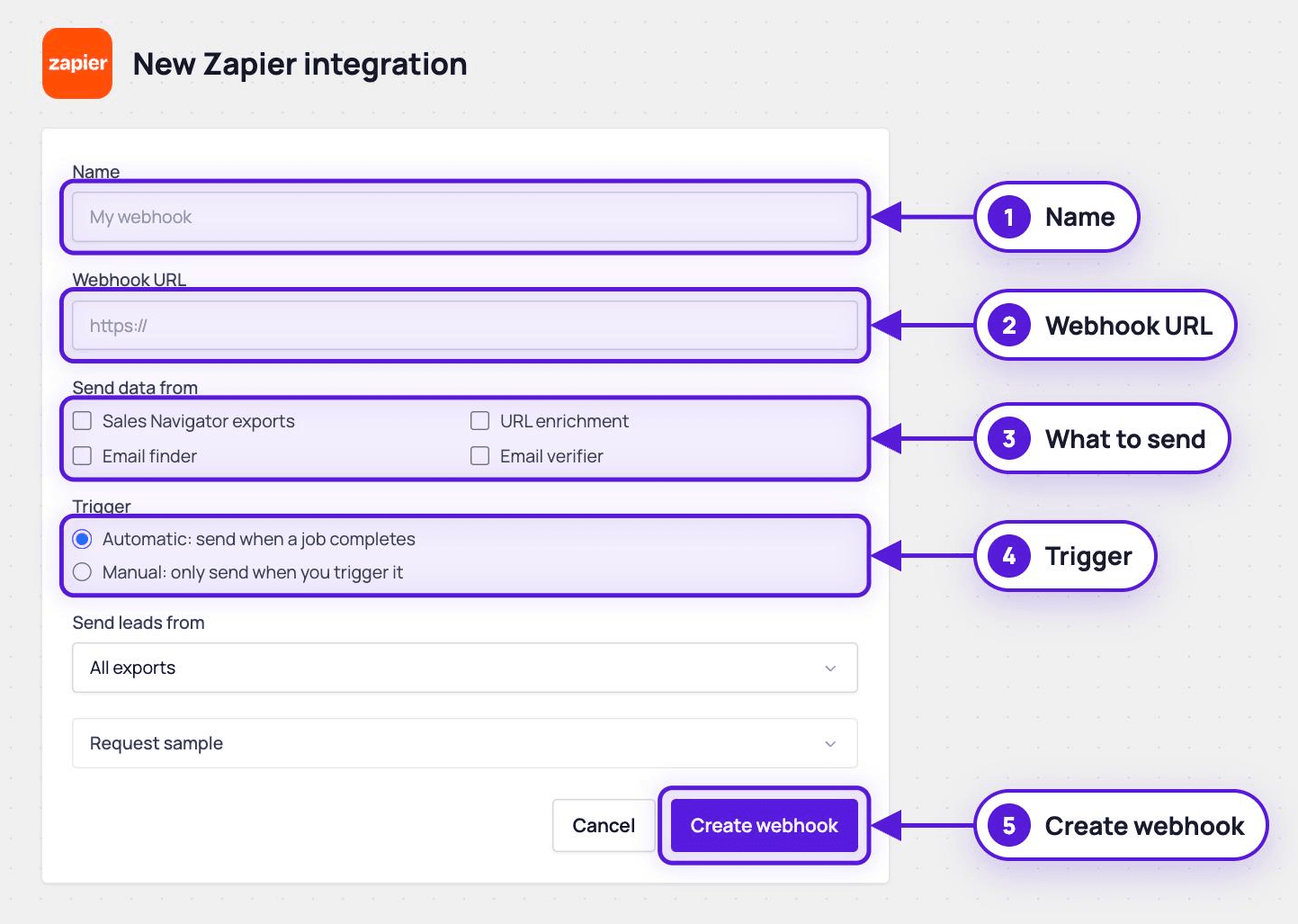
- Name the integration, paste the URL, and pick the data types, where to send leads from, and the trigger.
- Automatic — sends results as soon as a job completes and is paid.
- Manual — delivers only when you send a test or click Push this export.
- Click Create webhook, then Send test from its actions menu. In Zapier, click Test trigger to map the sample, then publish.