
How do I add or remove teammates?
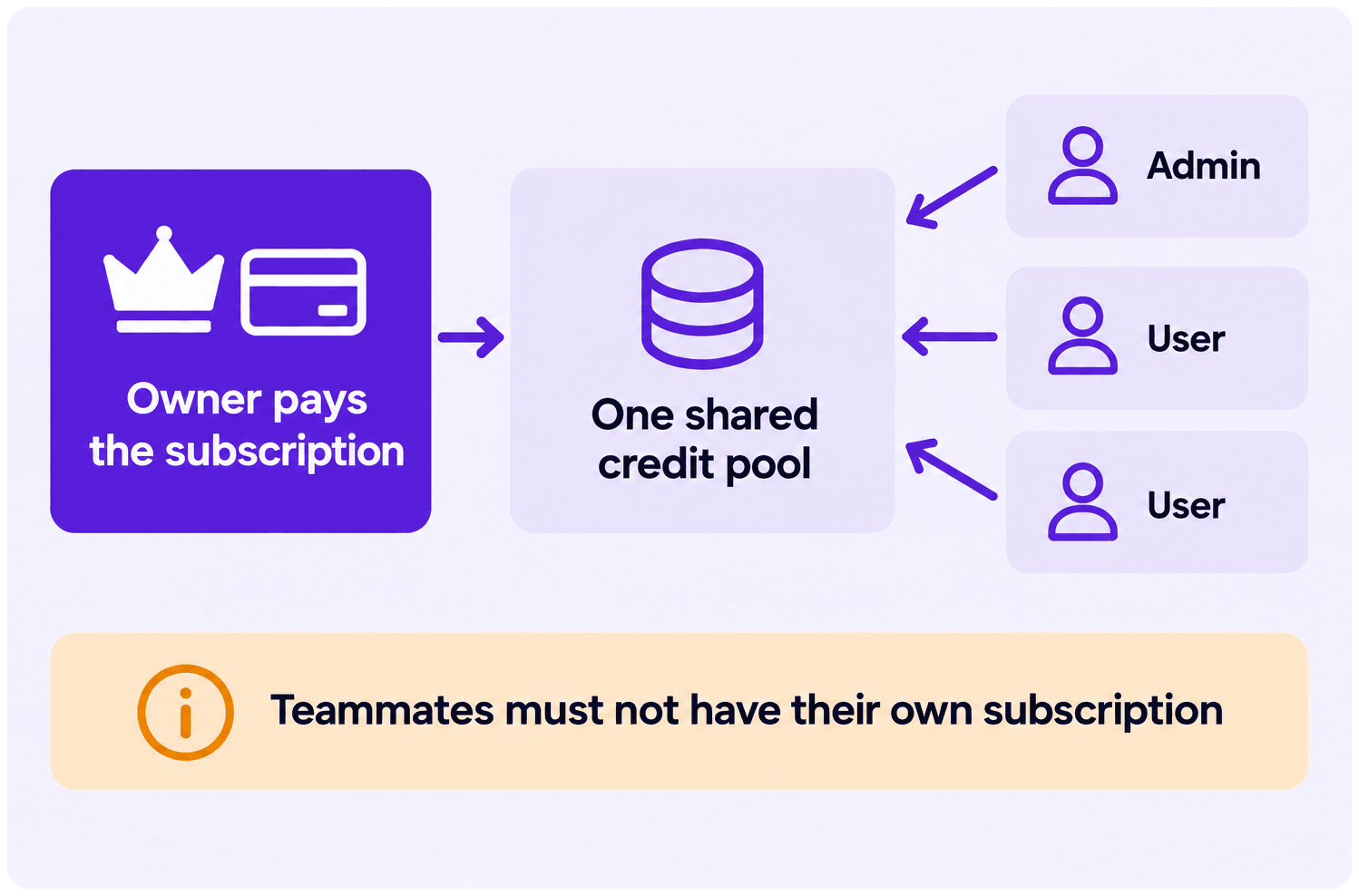
A team puts everyone on one shared credit pool, paid for by a single person. Teammates export against that pool instead of buying their own plan.
Before you start
Section titled “Before you start”- The team owner needs an active subscription. Teams share the owner’s credits, so there has to be a plan behind the pool.
- Your teammates must not have an active subscription of their own. Someone who is already paying cannot join a team. They need to cancel first, or use an account that has never subscribed.
- Joining merges their credits into the pool. Whatever balance a teammate holds when they accept is added to the shared pool and is no longer theirs alone.
Where the Team page is
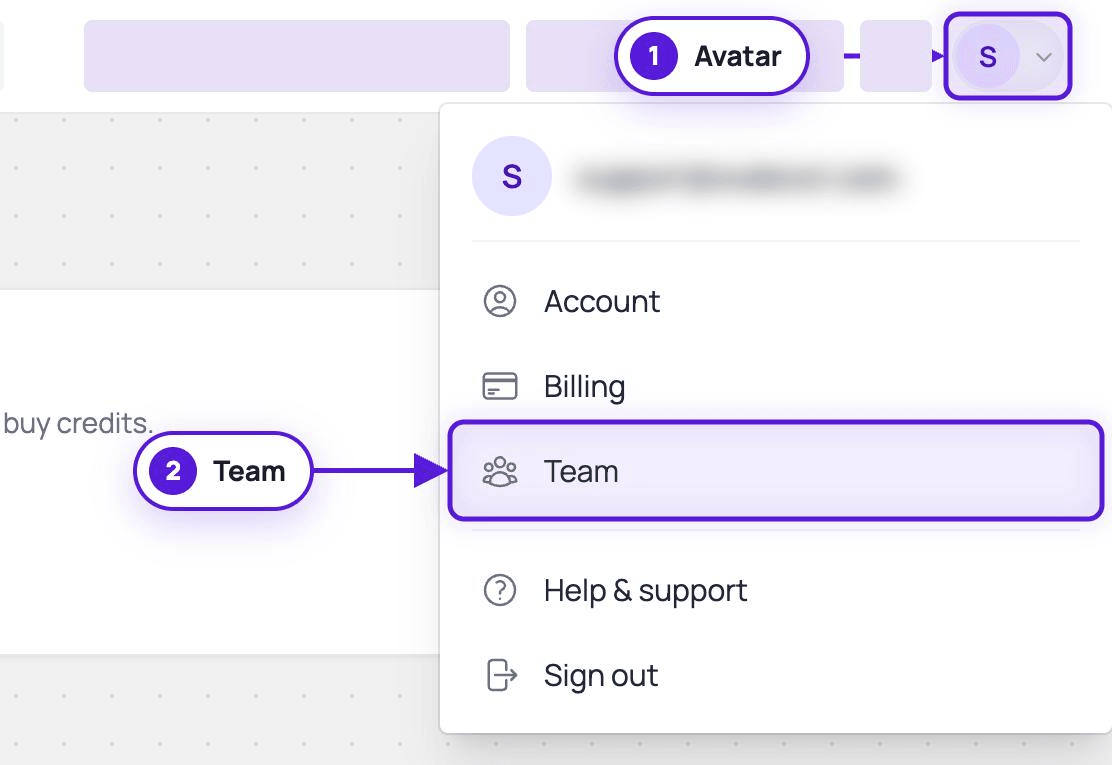
Section titled “Where the Team page is”Team is not in the left sidebar. The sidebar lists the tools and integrations. Everything to do with your account sits behind the avatar menu in the top-right corner.
Click your avatar, then click Team. The direct link is dash.evaboot.com/dash/team/.
Create your team
Section titled “Create your team”The first time you open the Team page, it asks for a name. Type one and click Create team.
If you do not have an active subscription, the page shows a See pricing button instead. Subscribe first, then come back.
Invite your teammates
Section titled “Invite your teammates”Once the team exists, the page shows your members and an Invite a teammate card.
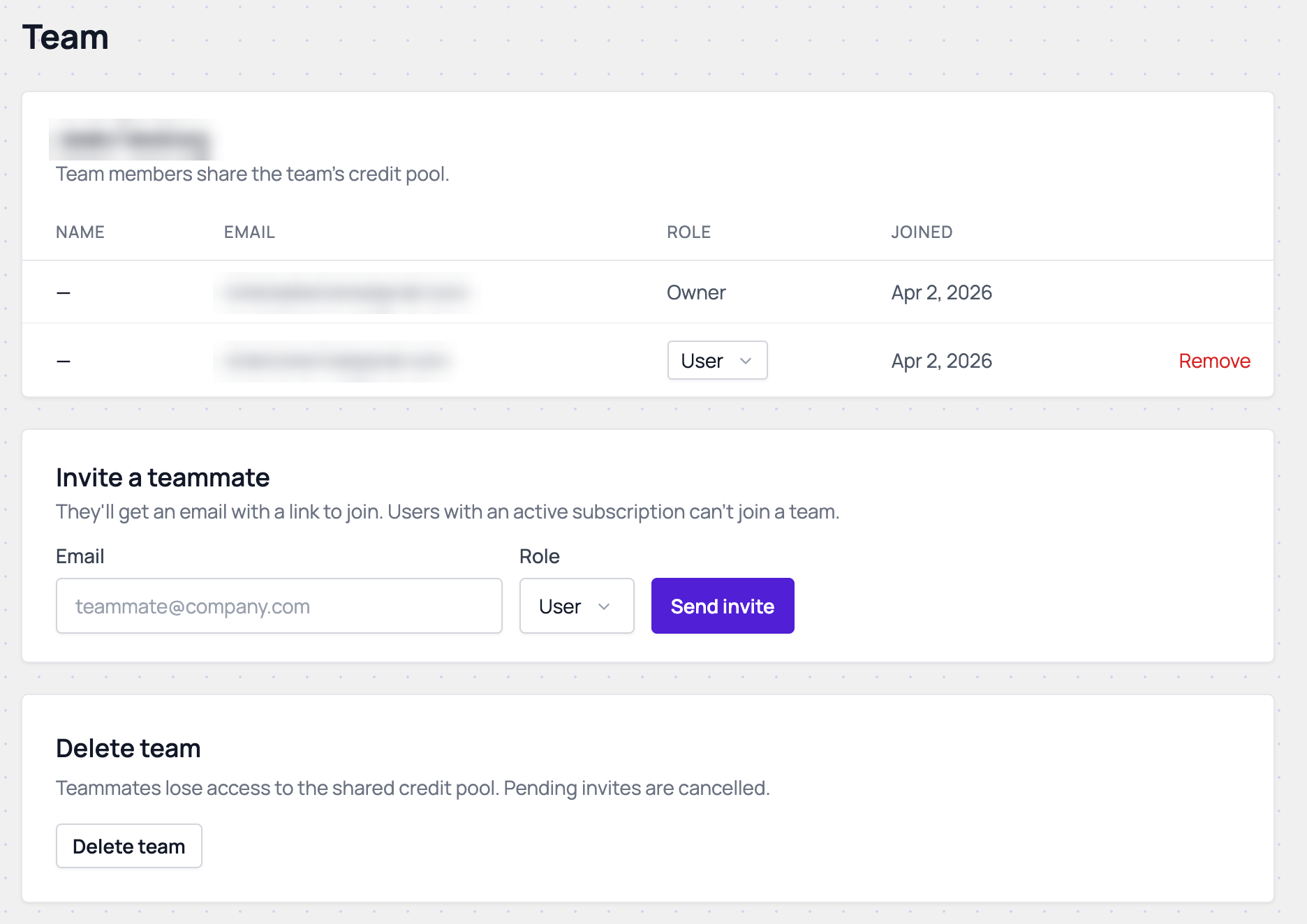
Fill in the invitation:
- Email — the address your teammate uses, or will use, for Evaboot.
- Role — see the roles below.
Then click Send invite.

The roles
Section titled “The roles”- Owner — the person who pays. Only the owner can invite people, remove them, and buy credits.
- Admin and User — the two roles you can hand out. Admins see more of the team’s export activity than users do.
Your teammate accepts
Section titled “Your teammate accepts”They get an email titled ”… invited you to their team on Evaboot” with a View invitation button.
That button opens a page naming the team and the role they were invited as, with Accept invitation and Decline.
They have to arrive through the link in that email, and it is worth warning them about one step:
- If they open the link while signed out, they land on the login page and continue to the invitation afterwards. That works.
- If they do not have an Evaboot account yet and sign up from that page:
- The sign-up drops them into the dashboard instead of back to the invitation.
- They then need to reopen the link from the email. The invitation is still valid; it just does not follow them through sign-up.
Someone who already belongs to another team cannot accept at all. The page tells them so, and offers no Accept button.
Once they accept, they draw from the shared pool.
Invitations you have sent
Section titled “Invitations you have sent”A pending invitation shows up in the roster as its own row, with a Revoke control. Use it to cancel an invitation that has not been accepted. Use it if you sent it to the wrong address.
Change a teammate’s role
Section titled “Change a teammate’s role”In the members table, use the role dropdown on the teammate’s row to switch them between User and Admin.
Remove a teammate
Section titled “Remove a teammate”On the Team page, click Remove at the end of the teammate’s row. They leave the team and stop drawing from the shared pool.
Changing who owns the team
Section titled “Changing who owns the team”The owner cannot be changed from the dashboard. Contact support: see How do I transfer team ownership to someone else?.
Deleting the team
Section titled “Deleting the team”At the bottom of the Team page, click Delete team.
Deleting a team cuts every member off from the shared pool. It cancels any invitations still outstanding.
You do not need to delete your team before cancelling your subscription. Cancelling works with a team in place.