How do I enrich a list of LinkedIn URLs?
URL Enrichment turns LinkedIn or Sales Navigator URLs — people or companies — into full profiles with fresh Sales Navigator data. Paste the URLs or upload a file, and Evaboot scrapes each matching Sales Navigator page.
Before you start
Section titled “Before you start”- The latest Evaboot Chrome extension, signed in. Enrichments run through your LinkedIn session in the extension. See How Do I Install or Update the Evaboot Extension?.
- Unique-ID or Sales Navigator URLs. Public
/in/URLs are not supported — see Why can’t Evaboot enrich public LinkedIn URLs? below.
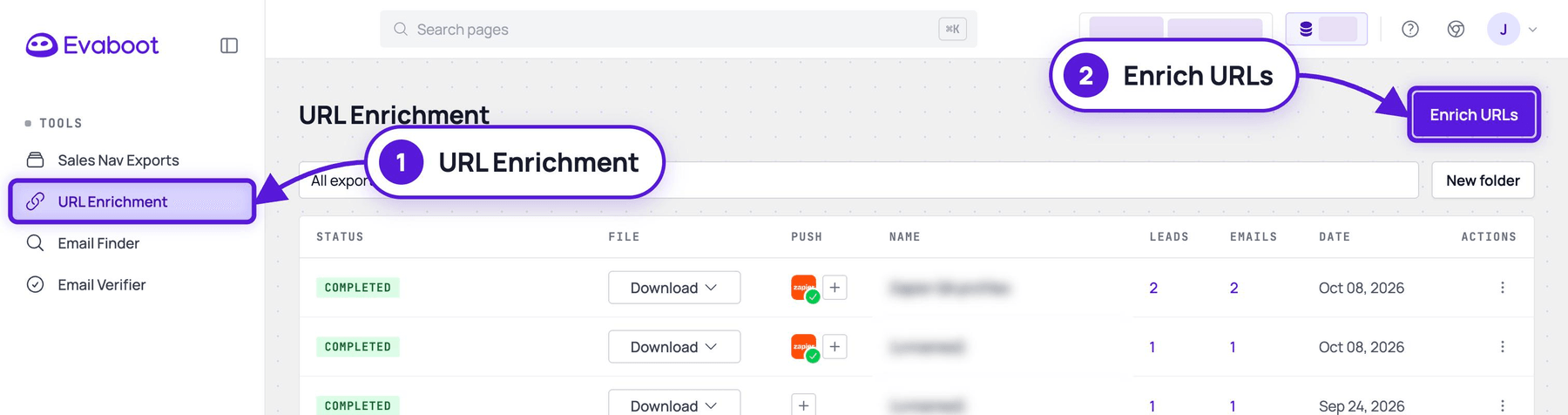
- Click URL Enrichment in the left menu, or open dash.evaboot.com/dash/exports/url-enrichment/. Your past enrichments are listed there.
- Click Enrich URLs at the top right.
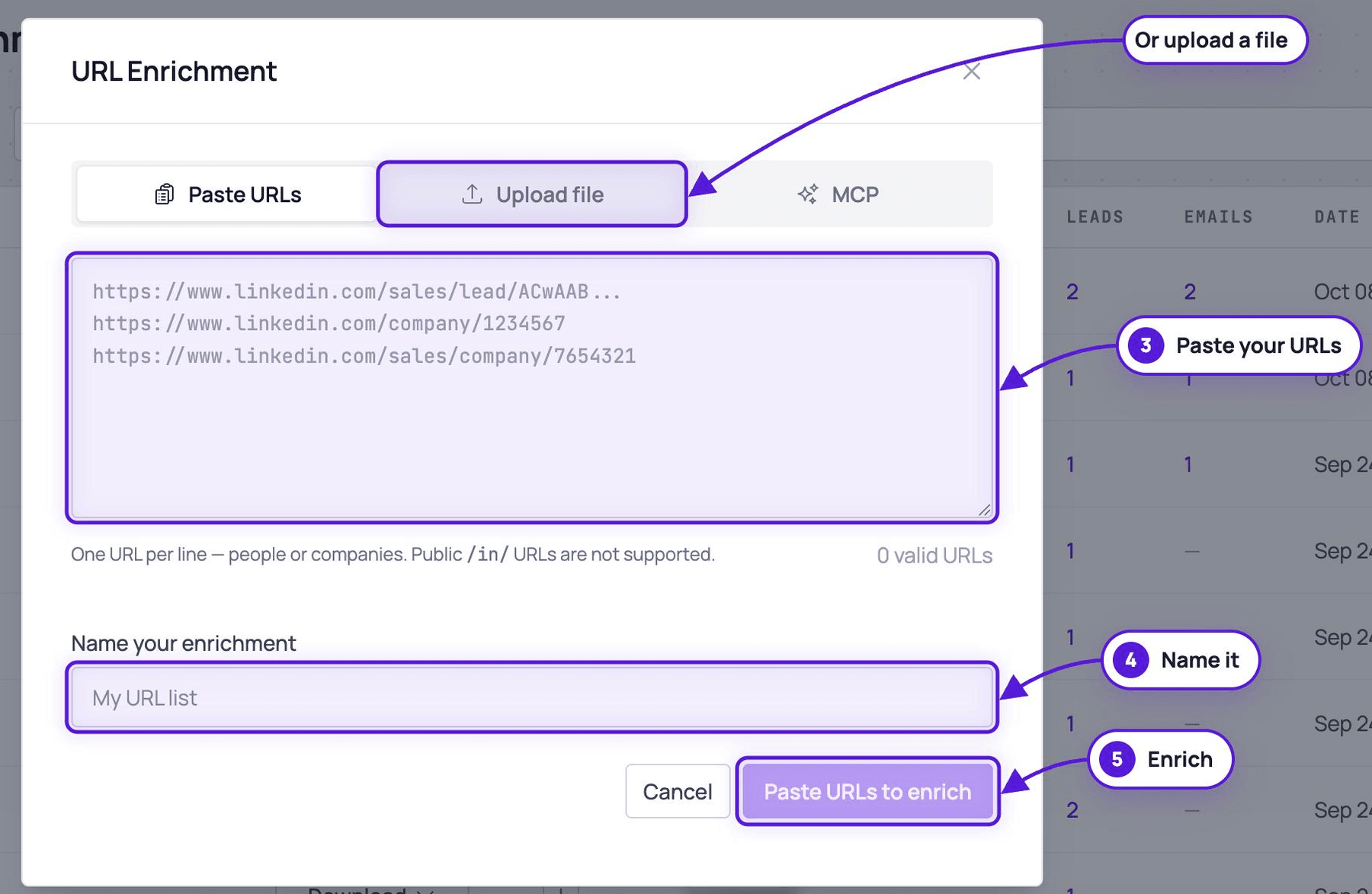
- Paste your URLs, one per line — people or companies. The valid-URL counter under the paste box tells you how many lines Evaboot recognized.
- Or click Upload file to drop a
CSVorXLSXfile instead.
- Or click Upload file to drop a
- Name your enrichment.
- Click Paste URLs to enrich (or Enrich uploaded URLs).
Verified professional emails are found automatically for people URLs, not companies.
What type of URL can I use?
Section titled “What type of URL can I use?”| URL type | Example |
|---|---|
| LinkedIn profile unique-ID URLs | https://www.linkedin.com/in/ACwAADgSKTgBG1rXvNCRIb44opw_2XvX5ocaegI |
| Sales Navigator profile URLs | https://www.linkedin.com/sales/lead/ACwAADgSKTgBG1rXvNCRIb44opw_2XvX5ocaegI |
| LinkedIn company unique-ID URLs | https://www.linkedin.com/company/71273401 |
| Sales Navigator company URLs | https://www.linkedin.com/sales/company/9311503 |
Why can’t Evaboot enrich public LinkedIn URLs?
Section titled “Why can’t Evaboot enrich public LinkedIn URLs?”Public URLs (like https://www.linkedin.com/in/enzo-colbachiny/) are not supported. All the data comes from Sales Navigator. Only the unique ID in a URL can be converted into a Sales Navigator URL, and a public URL carries a custom name instead.
Unique-ID URLs are also safer to store. People can change their public URL, and a stored public URL then turns into a 404. That breaks prospecting automations and enrichment workflows. A unique-ID URL never changes, so you can store it in your CRM indefinitely.
What data do I get?
Section titled “What data do I get?”Each URL you enrich costs 1 credit.
People URLs bring back the same profile and company data as a lead export, including a verified professional email when found. The full field list is in What Data Do I Get When I Export a Lead?
Company URLs bring back the company data only.
What happens to the other columns of my file?
Section titled “What happens to the other columns of my file?”If you upload a file, the extra columns are preserved in the downloaded CSV, alongside the data Evaboot adds.
If it didn’t work
Section titled “If it didn’t work”- The counter stays at
0 valid URLs— put one URL per line, and check they are unique-ID or Sales Navigator URLs, not public/in/links. - No emails in the result — emails are found for people URLs only.