How do I set up my n8n integration?
Create a Webhook trigger in n8n, publish the workflow, then paste its Production URL into a new n8n integration in Evaboot. Once connected, Evaboot sends your export and email results straight into your n8n workflow.
Before you start
Section titled “Before you start”- An n8n account (cloud or self-hosted) where you can create workflows.
- Evaboot open at dash.evaboot.com/dash/integrations/.
In n8n: create the webhook
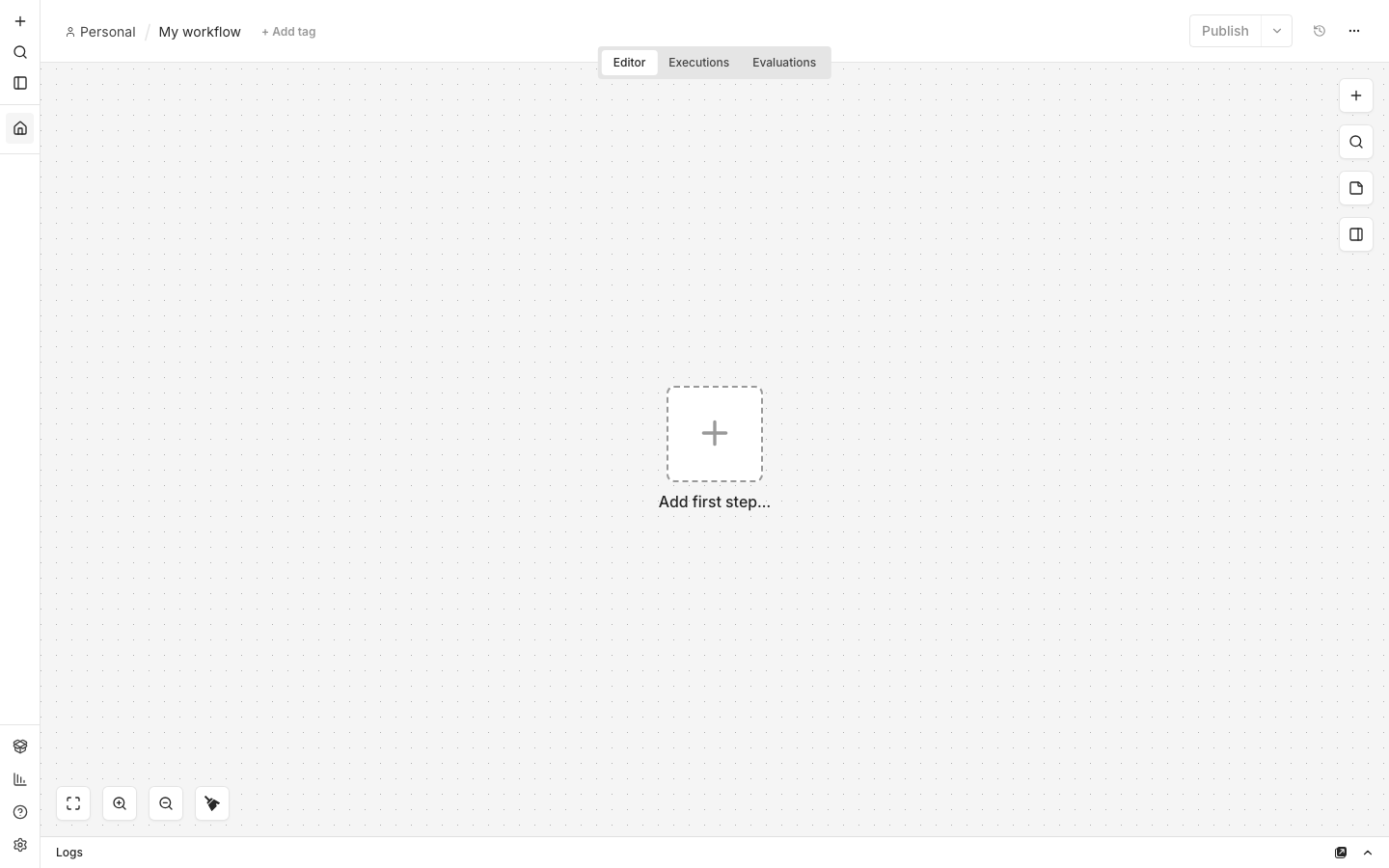
Section titled “In n8n: create the webhook”- Create a new workflow in n8n and click Add first step.
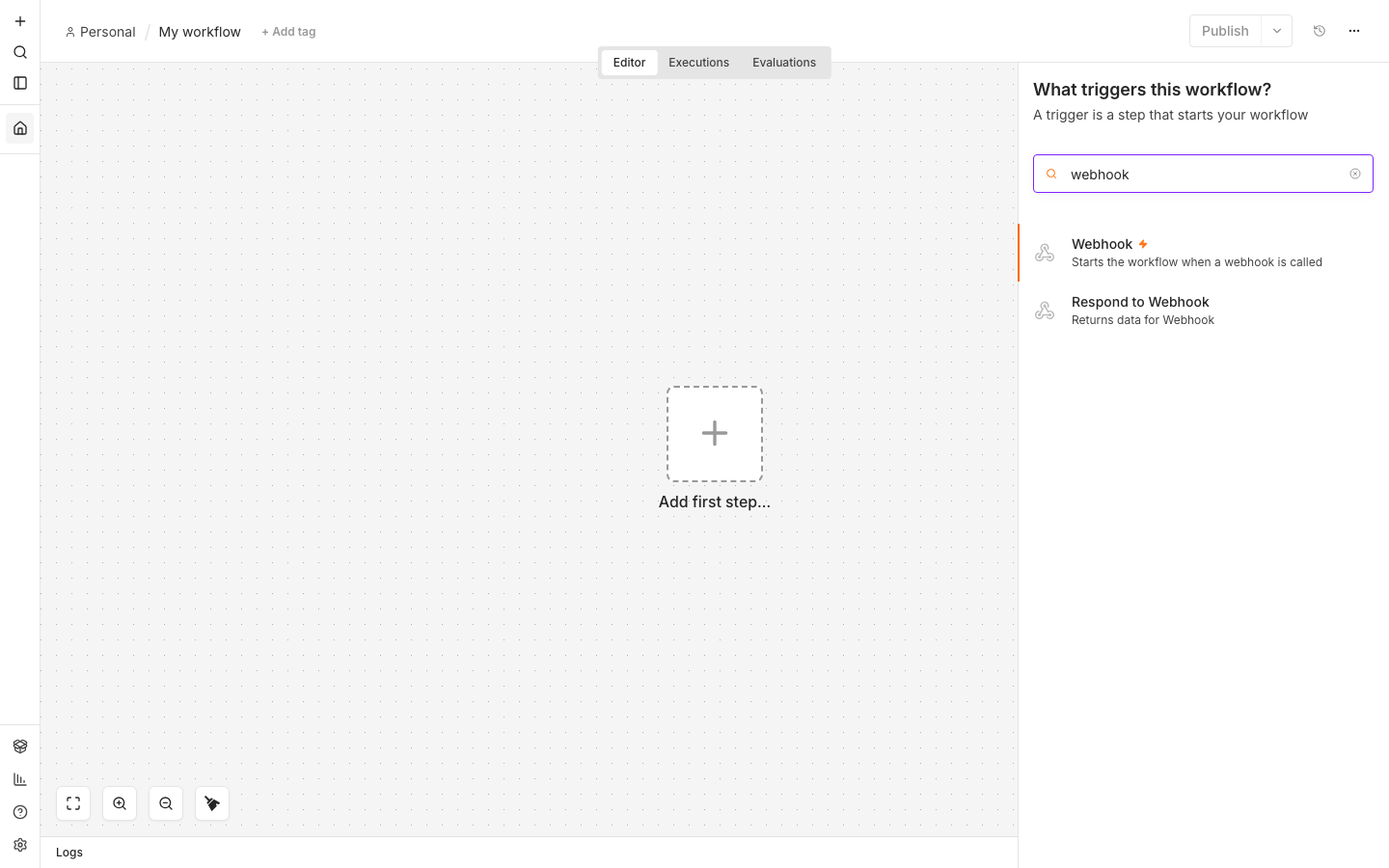
- Search for “webhook” and pick the Webhook trigger — “Starts the workflow when a webhook is called”.
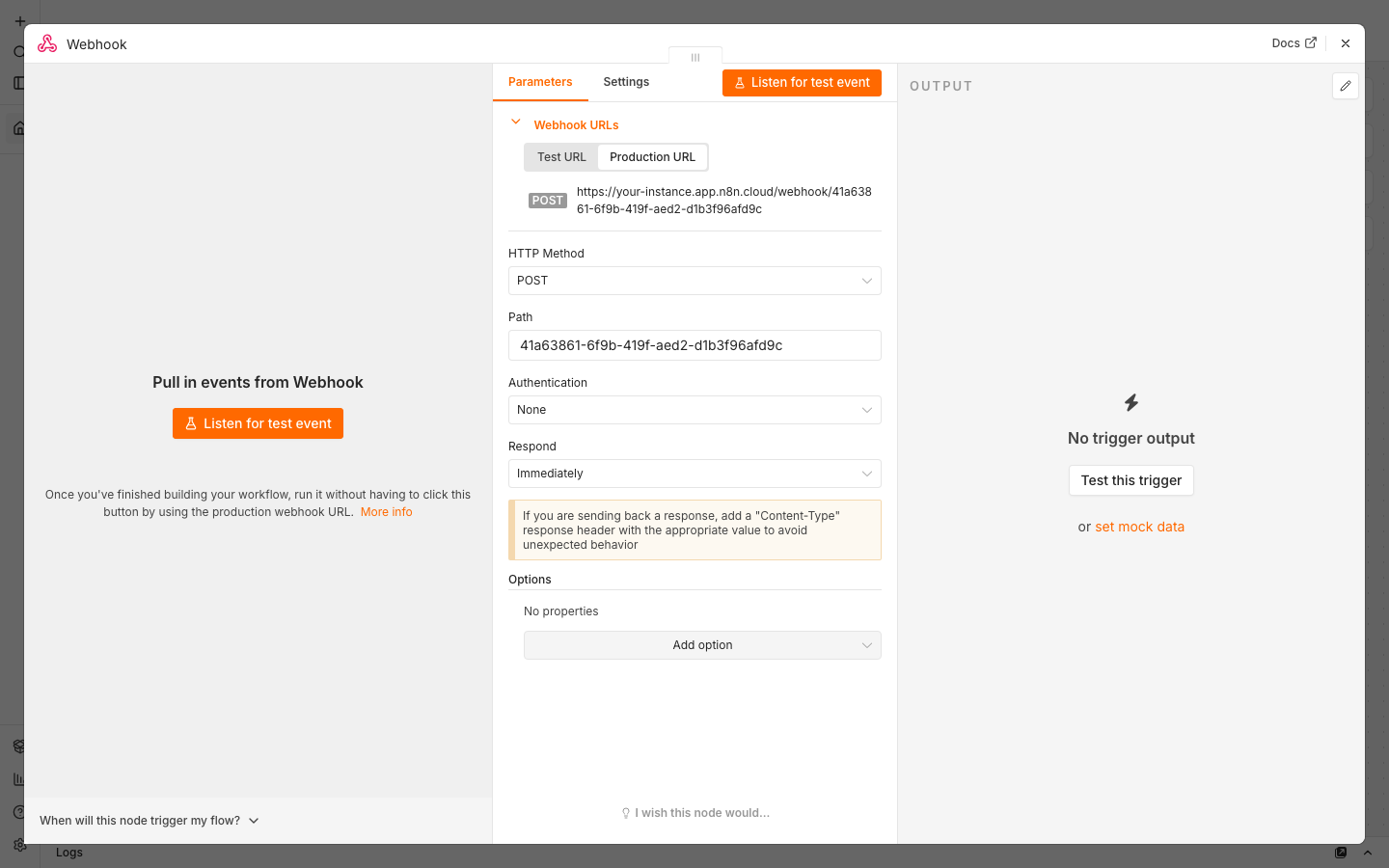
- Set HTTP Method to POST. Evaboot delivers data as a JSON POST request.
- Copy the Production URL from the Webhook URLs box.
- Publish the workflow. The Production URL only accepts calls once the workflow is published. The Test URL only works while the node is listening for a test event.
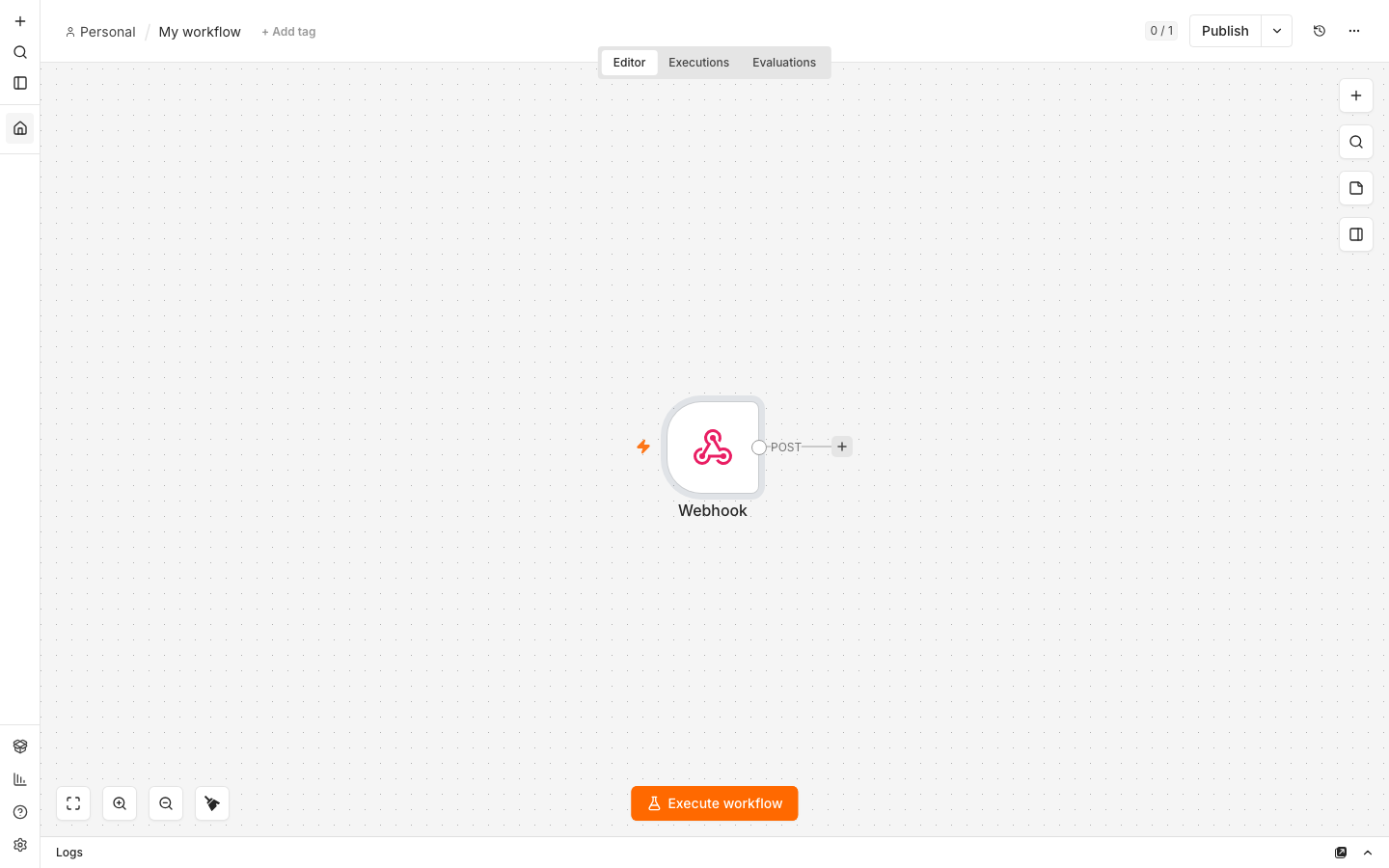
In Evaboot: connect it
Section titled “In Evaboot: connect it”-
Open Integrations. Stay on the Integrations tab, click New integration, and choose n8n.
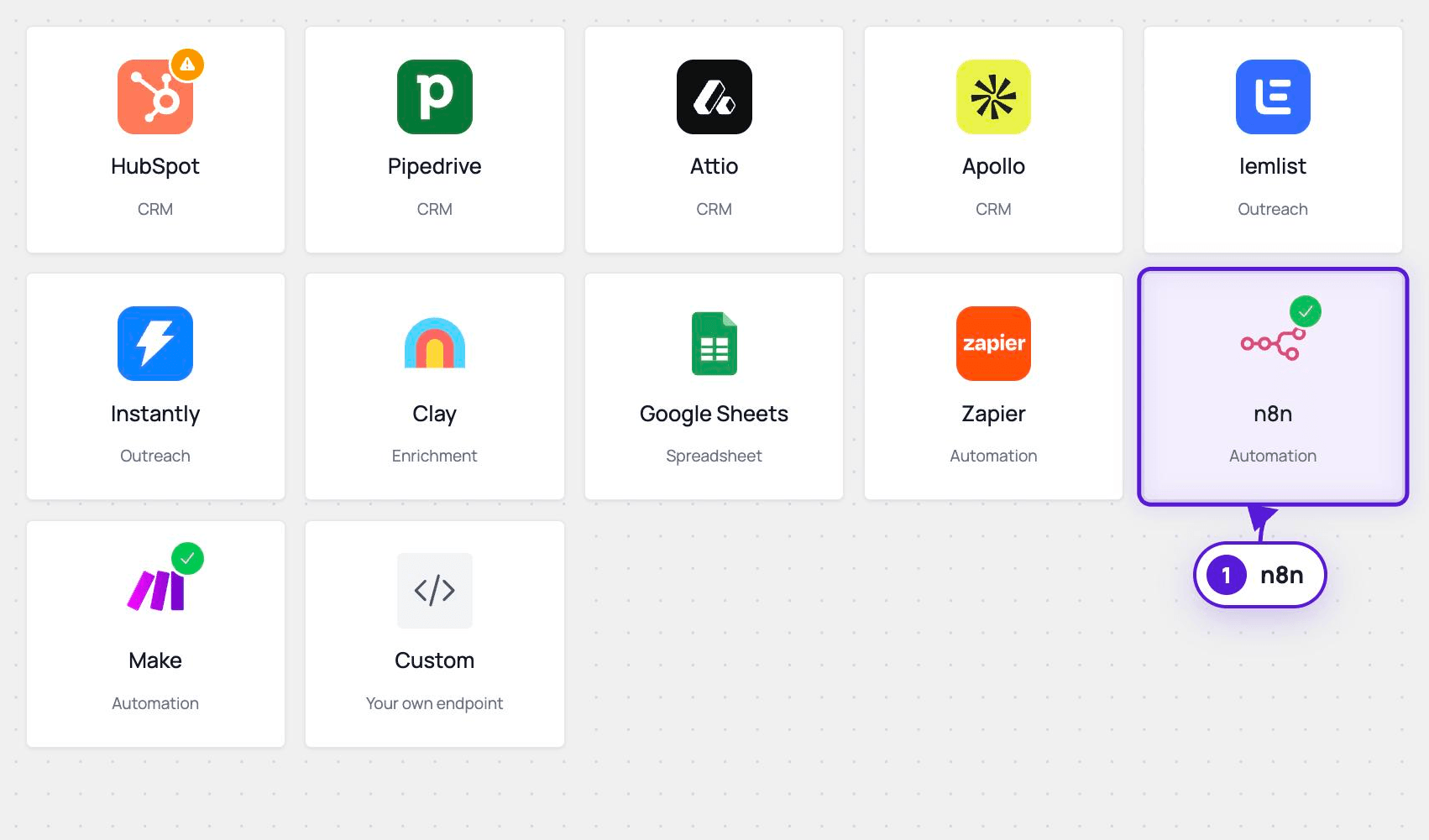
-
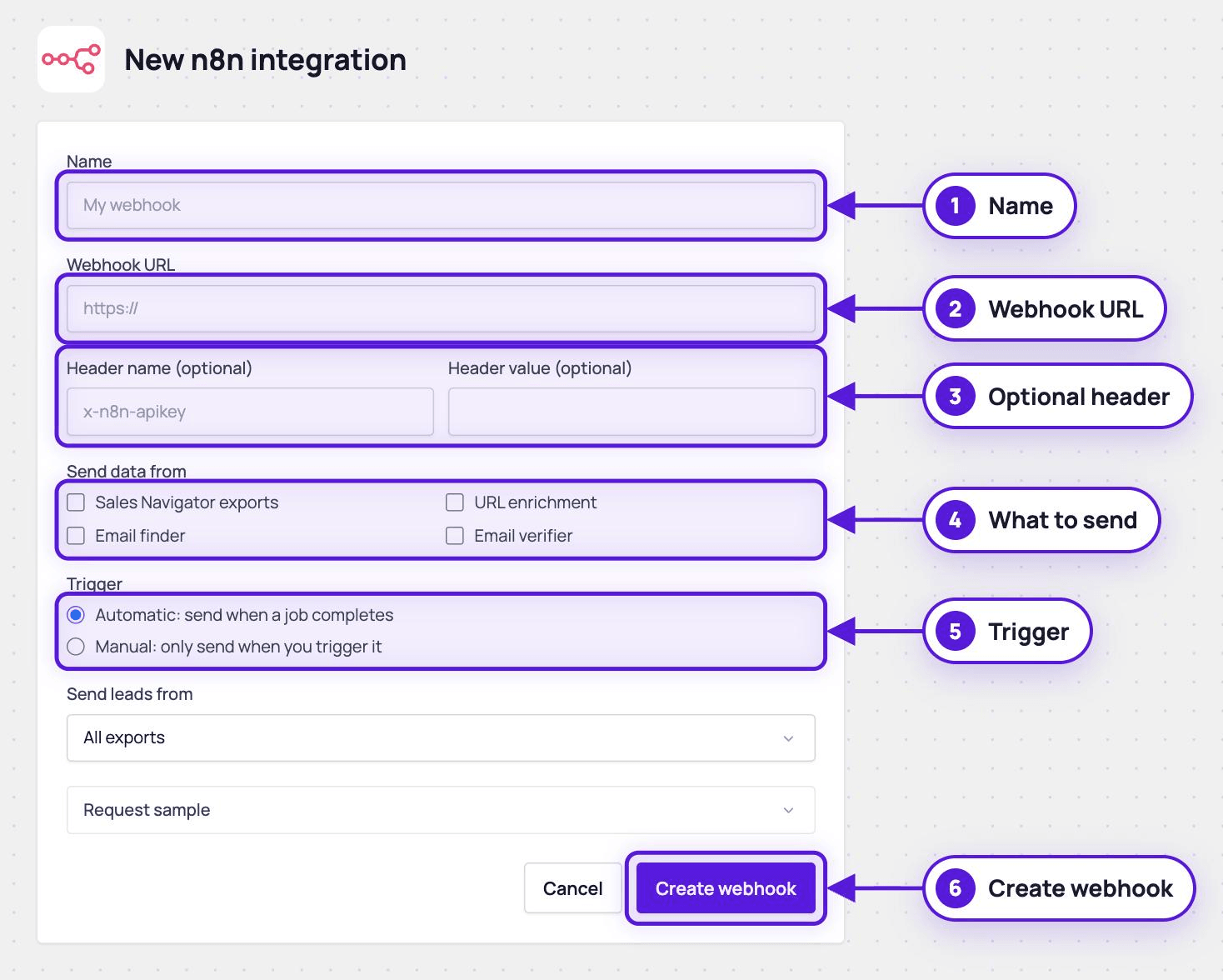
Name the integration and paste the Production URL.
-
Optional — header authentication. If your n8n Webhook node uses Header Auth, enter the same header name and value here. Evaboot pre-fills
x-n8n-apikeyas the header name. Leave both fields empty if your webhook has no authentication. -
Pick what to send.
- Send data from: Sales Navigator exports, URL enrichment, Email finder, Email verifier.
- Send leads from: all exports, all recurring exports, specific recurring exports, or specific folders.
-
Pick the trigger.
- Automatic — sends results as soon as a job completes and is paid. One automatic integration per data type.
- Manual — sends nothing on its own. It delivers when you send a test, or when you click Push this export on a finished export.
- Open Request sample and pick a data type to see the exact JSON Evaboot will post, so you can map fields in n8n before any real data arrives.
- Click Create webhook.
Test it
Section titled “Test it”From the webhook’s row on the Integrations page, open the actions menu and click Send test. Evaboot posts a sample payload — fake data, never your real leads — to your n8n workflow. In View logs the delivery appears with a TEST tag and the HTTP response code — 200 means n8n received it.
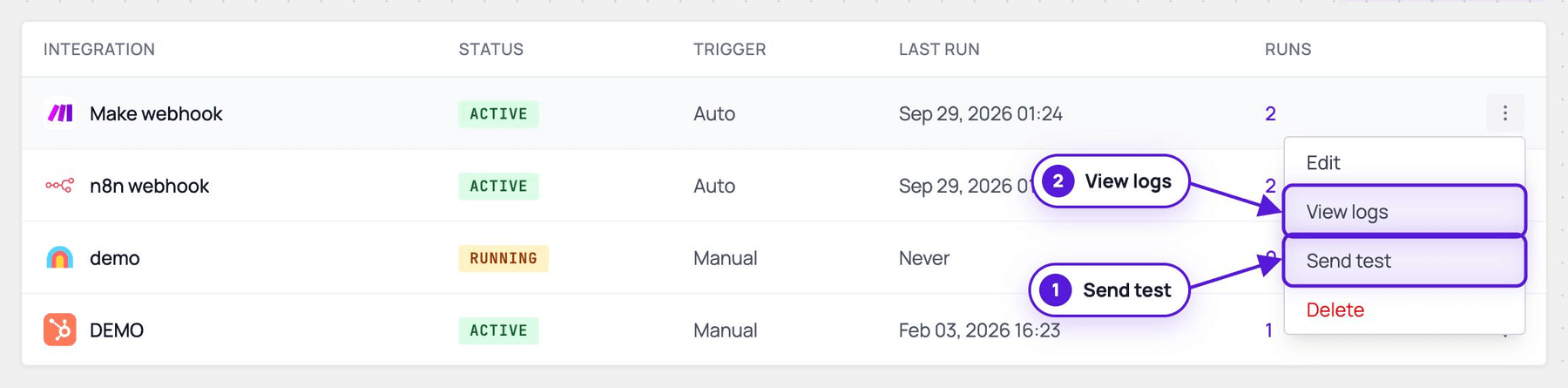
If it didn’t work
Section titled “If it didn’t work”- “Non-2xx response or transport failure” — check the logged response code. A
404usually means the workflow is not published or the URL is the Test URL — republish and paste the Production URL. - n8n receives nothing — make sure the workflow is published, the method is POST, and the URL was copied from the Production tab.
- 401/403 in the logs — the header name or value in Evaboot does not match the Header Auth configured on the n8n Webhook node.
Another way: the Evaboot community node
Section titled “Another way: the Evaboot community node”On a self-hosted n8n, you can install the Evaboot node instead of using a webhook. You need the Owner or Admin role in n8n.
- Open Integrations, switch to the Automations tab, and click Install the n8n node. It opens the Evaboot node on n8n.io. The package name is
n8n-nodes-evaboot.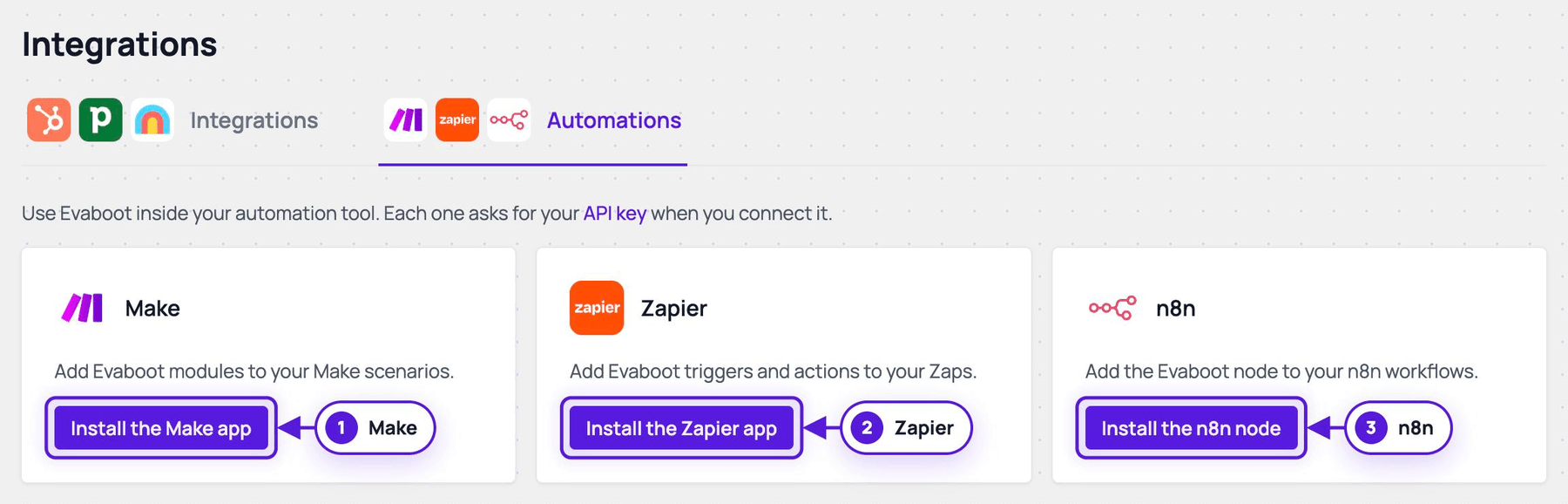
- In n8n, open Settings, then Community Nodes, and select Install.
- Paste the package name
n8n-nodes-evaboot, accept the risk notice, and select Install.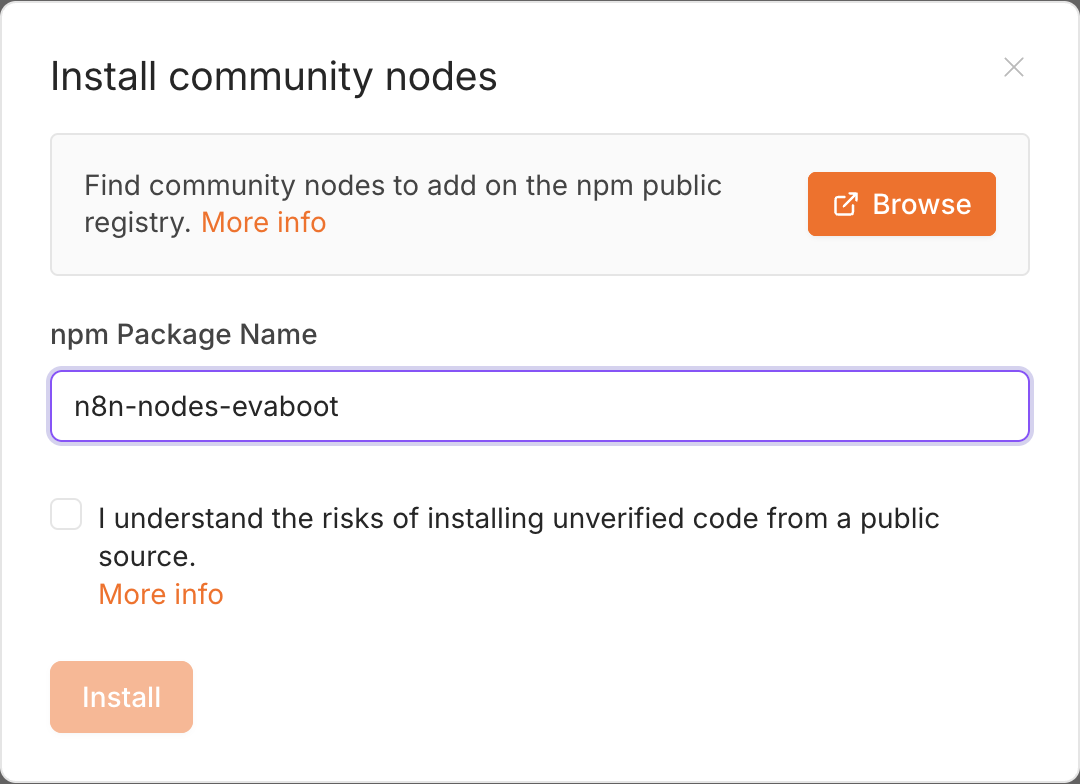
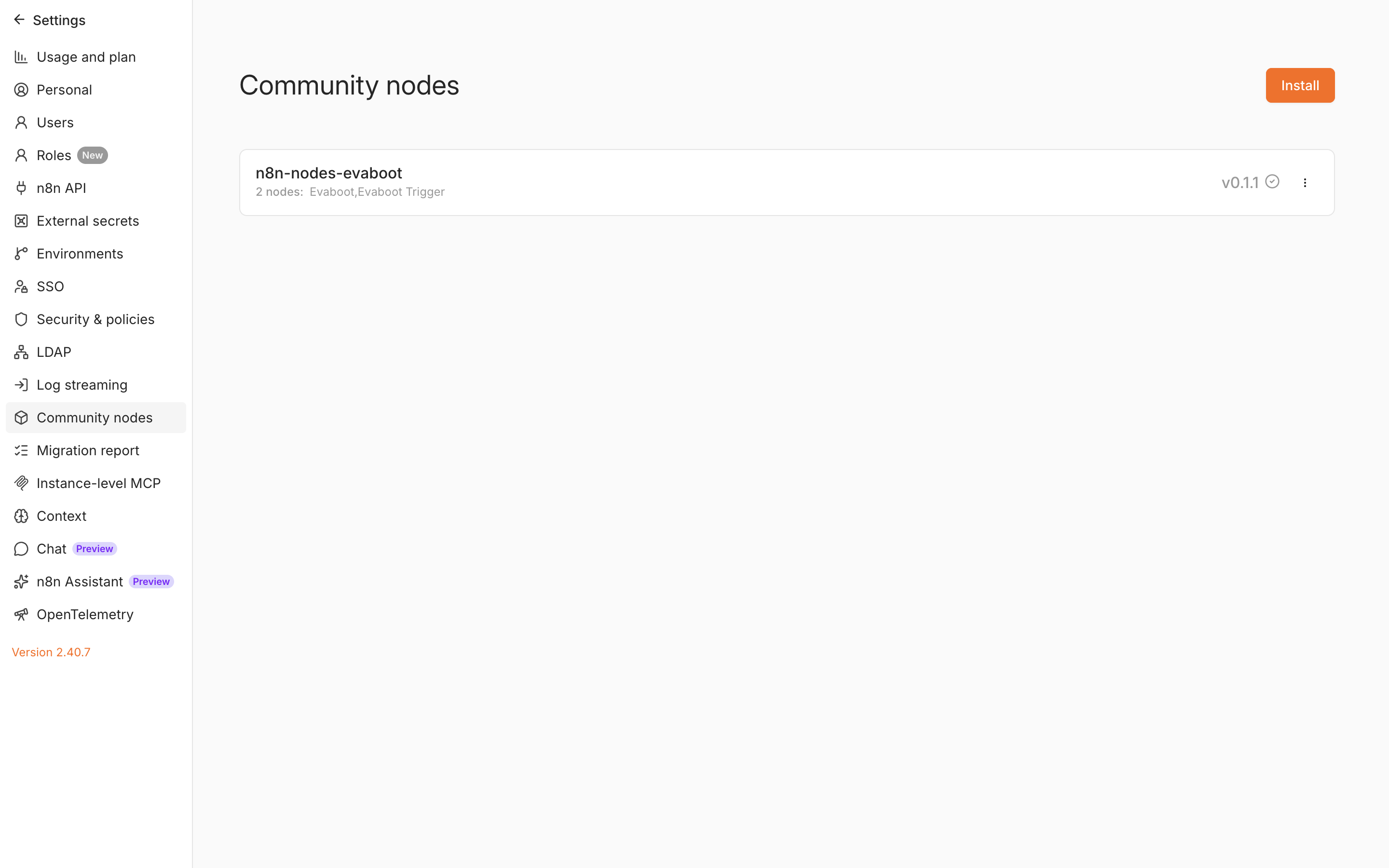
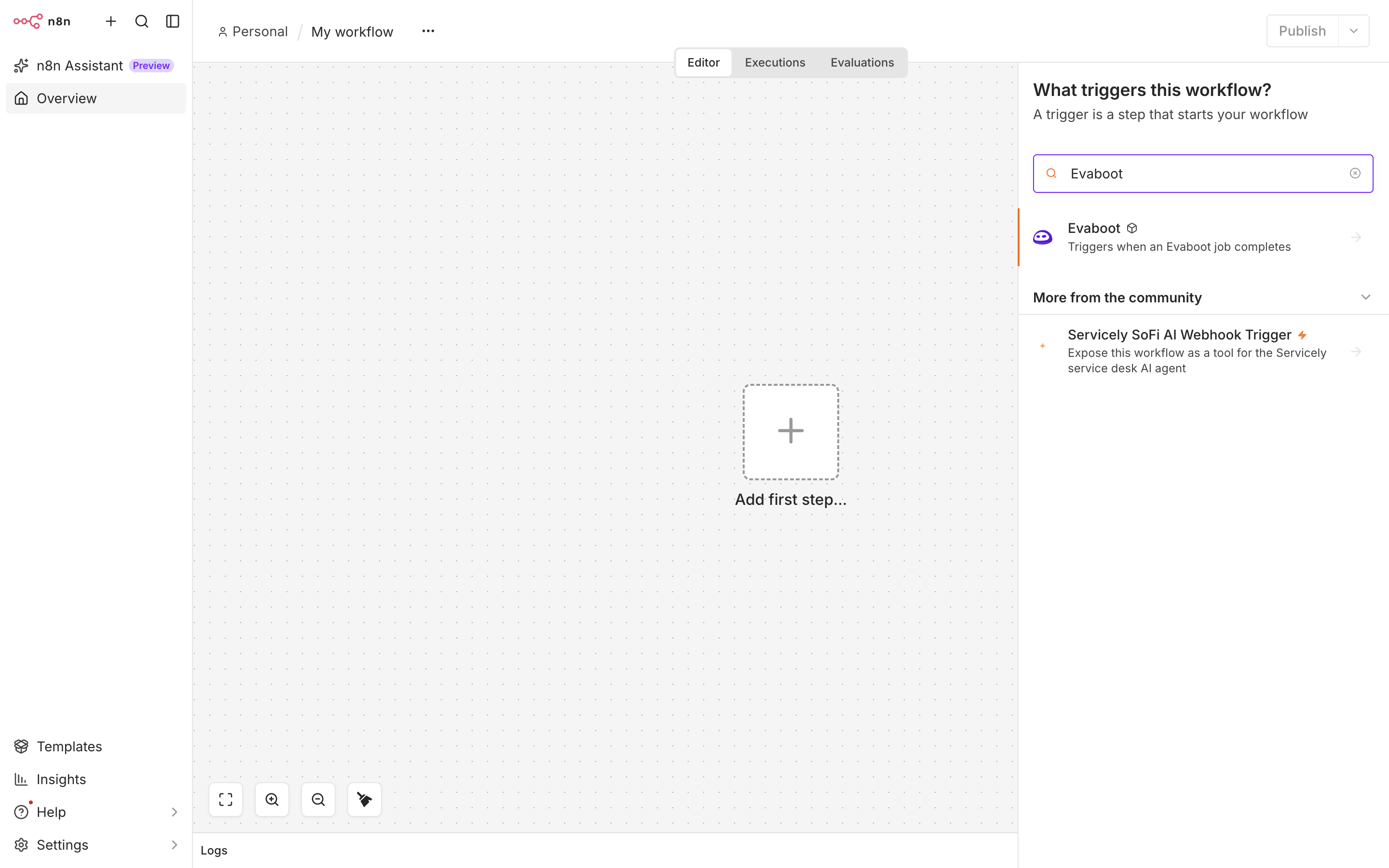
- Add the Evaboot node to a workflow. n8n asks for your Evaboot API key when you create the credential. Copy it from the API key page.
Good to know:
- n8n Cloud can’t install the Evaboot node yet. On n8n Cloud, use the webhook setup above.
- Only one Evaboot package at a time. If another Evaboot package is already installed, n8n refuses the second one with
UNIQUE constraint failed: installed_nodes.name. Uninstall the first one, then installn8n-nodes-evaboot. - Email verification can return before it finishes. If a check takes longer than about 25 seconds, the node returns
"status": "running"with ajob_idinstead of a result. Fetch the result with thatjob_idin a later step.