
How do I get new leads from a saved search automatically?
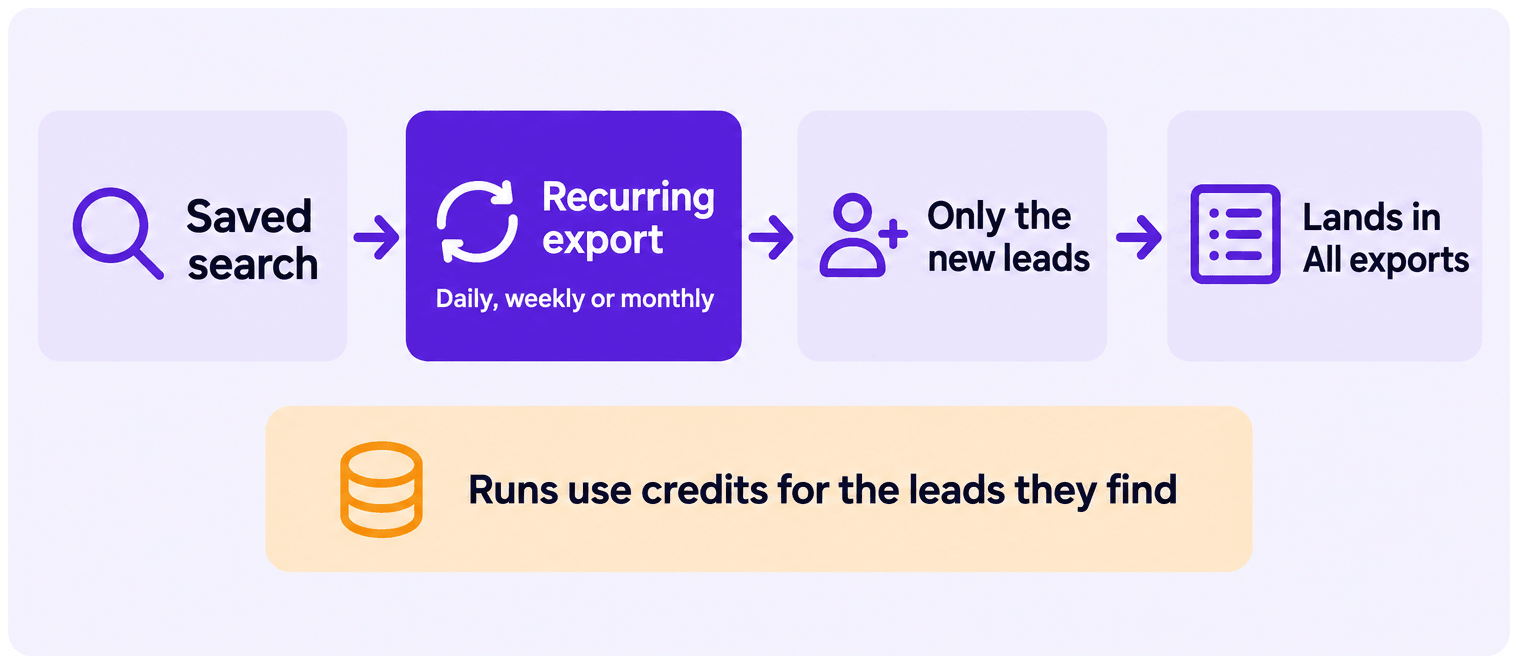
A recurring export re-runs a Sales Navigator saved search daily, weekly, or monthly — and each run brings back only the leads added since the last one. Recurring exports only work with saved searches, because they need a dynamic search that keeps finding new leads.
Before you start
Section titled “Before you start”- A Sales Navigator saved search. Lead lists and one-off searches can’t recur.
- The latest Evaboot Chrome extension, signed in. See How Do I Install or Update the Evaboot Extension?.
What is a saved search?
Section titled “What is a saved search?”A saved search is a set of Sales Navigator filters you store for future use — for example founders in SaaS companies in the US. Sales Navigator keeps updating its results as new profiles match your filters. That living result list is what a recurring export taps into.
In Sales Navigator: create and save the search
Section titled “In Sales Navigator: create and save the search”- Go to the Leads tab and apply your filters — job title, geography, company headcount, industry.
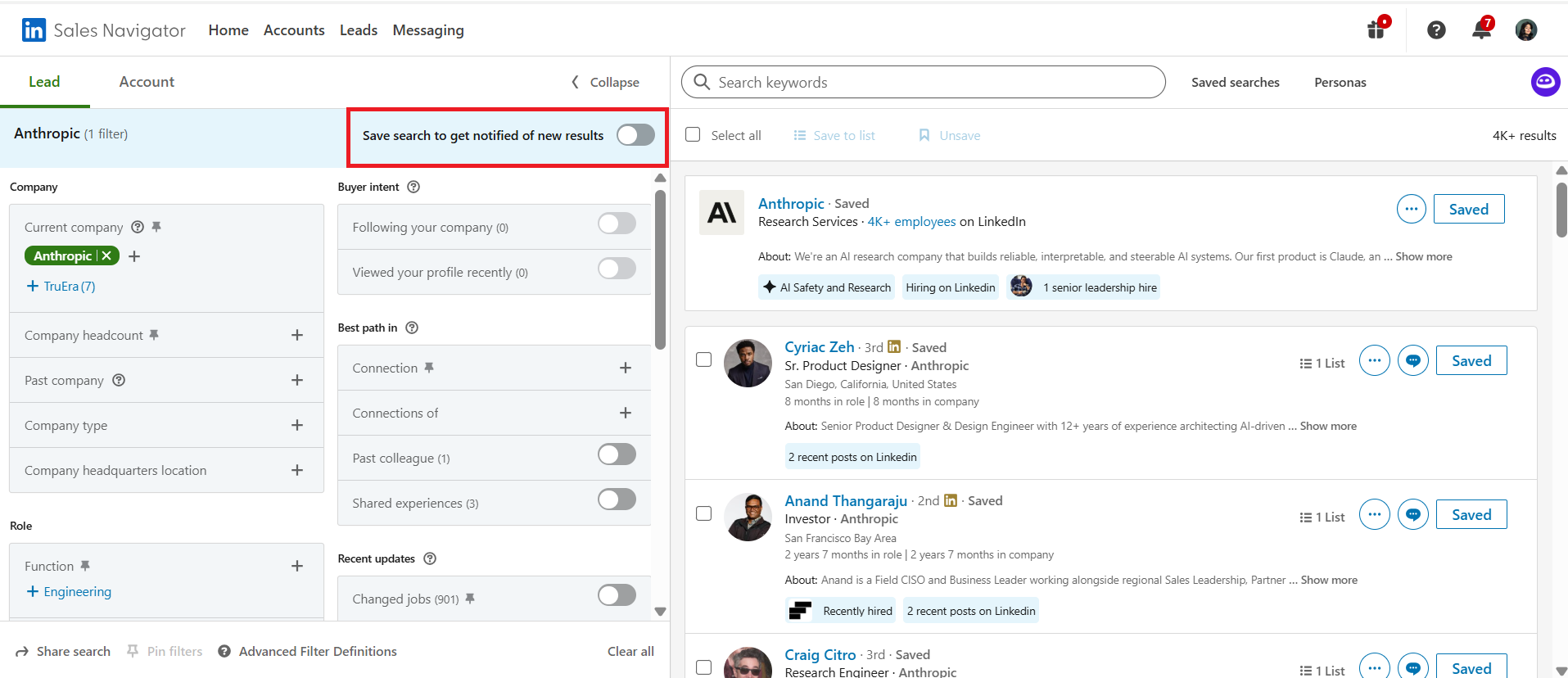
- Turn on Save search to get notified of new results, at the top of the filter panel.
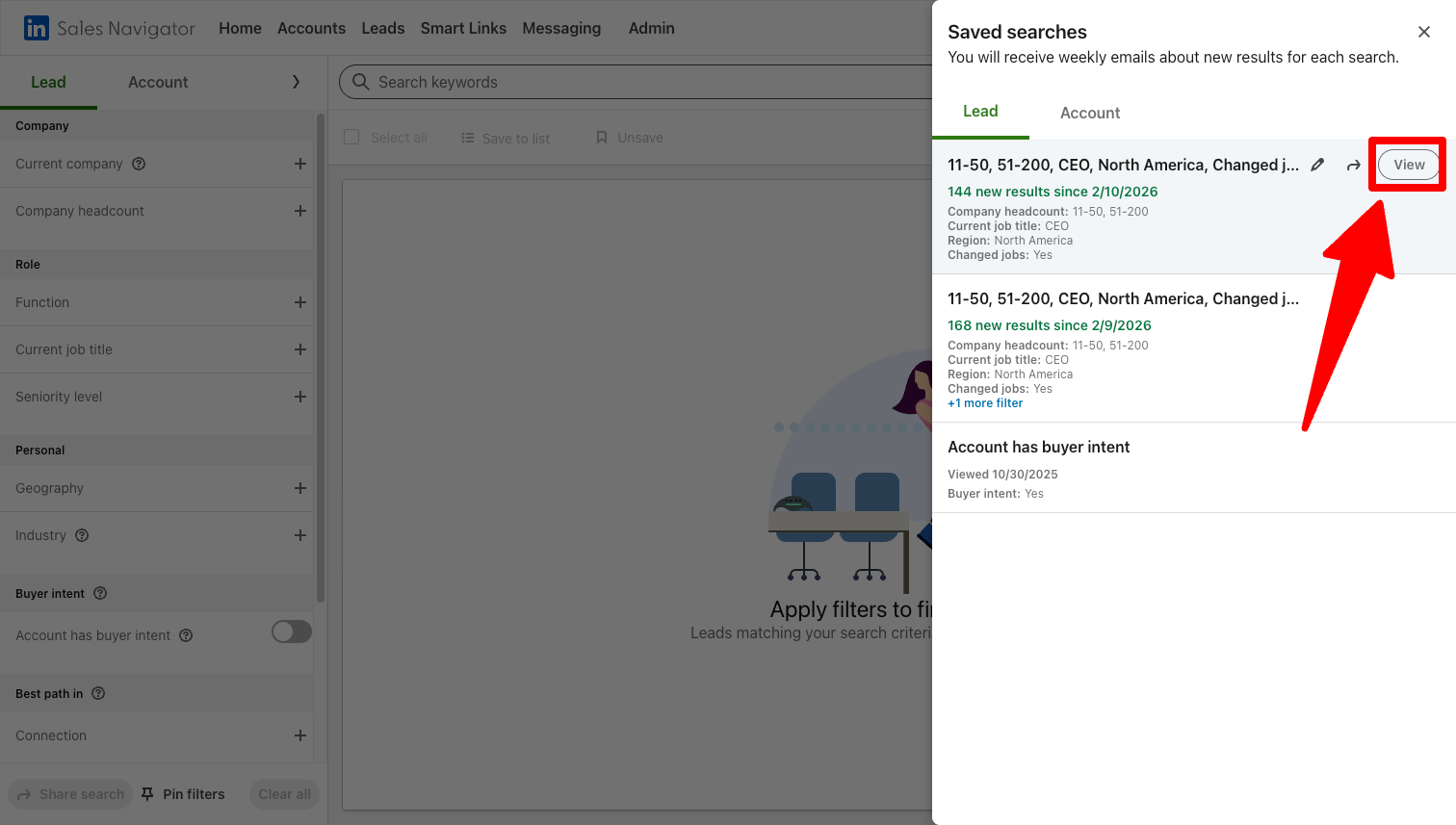
- Find it later under Saved searches — click View next to your search to load the live, continuously updated results.
In Evaboot: make the export recurring
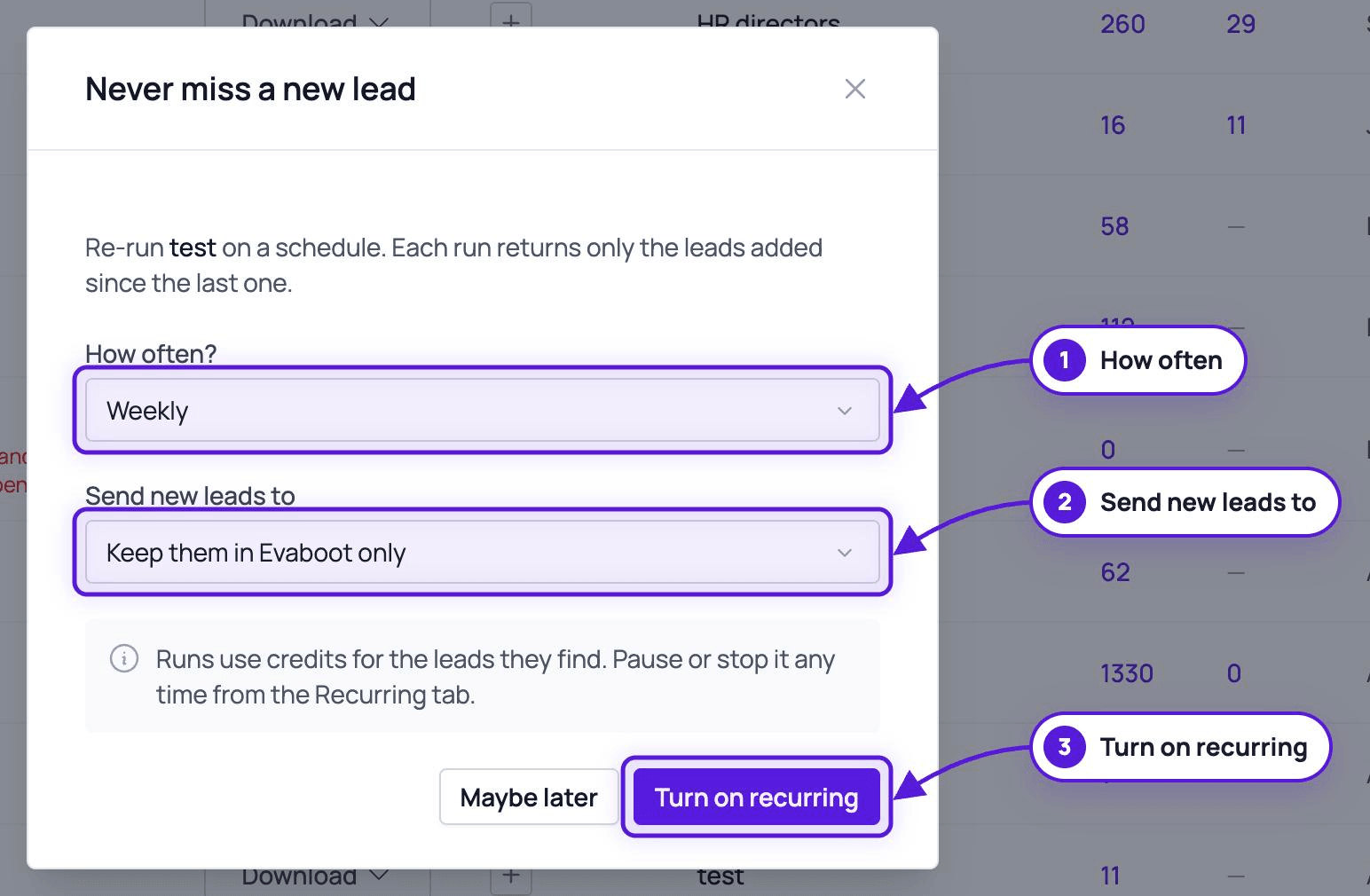
Section titled “In Evaboot: make the export recurring”Recurring is set up from an export you already have, or straight from the Recurring tab. Right after you launch an export, Evaboot also offers to re-run the search every week, under Get more leads like these.
-
Export the saved search with the Evaboot extension, like any other export. You’re redirected to the Evaboot app.
-
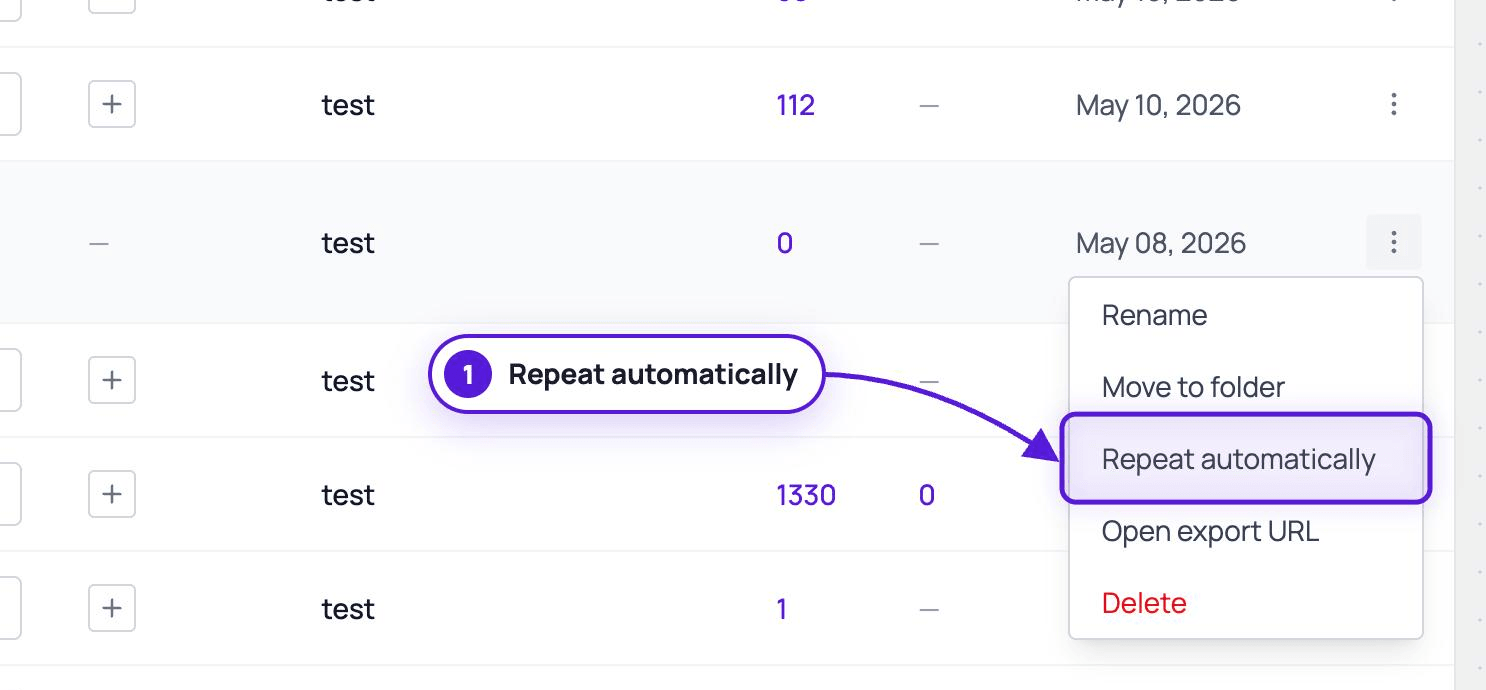
Click Set up recurring on the banner that appears on dash.evaboot.com/dash/exports/ once a saved-search export is in your list. You can also open the actions menu on that export’s row and pick Repeat automatically — same thing. Only saved-search exports get either option.

-
Pick how often in the dialog — daily, weekly, or monthly.

-
Optional — pick an integration under Send new leads to. Each run then goes to that tool as well. Leave Keep them in Evaboot only to skip it. See How Do I Send My Evaboot Results to Other Tools?.
-
Click Turn on recurring. Runs use credits for the leads they find.
Or start from the Recurring tab
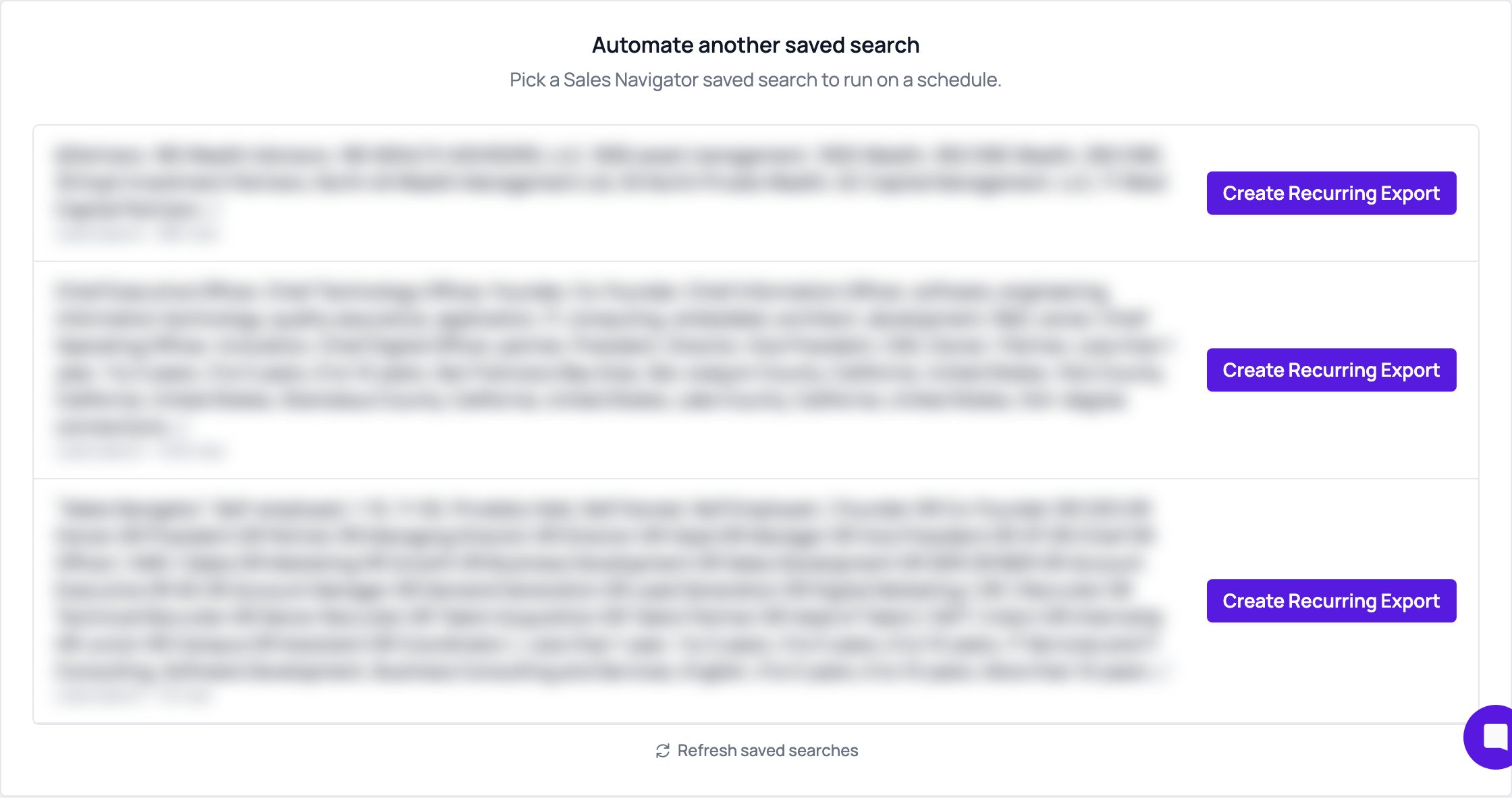
Section titled “Or start from the Recurring tab”Open the Recurring tab on the exports page. Under Automate another saved search, Evaboot lists the saved searches from your Sales Navigator account. Click Create Recurring Export next to one. The schedule starts right away, with no confirmation step.
Track it: the Recurring tab
Section titled “Track it: the Recurring tab”The Recurring tab sits next to All exports on the exports page. Your schedule appears there with its status, frequency, run and lead counts, and the last and next run dates.
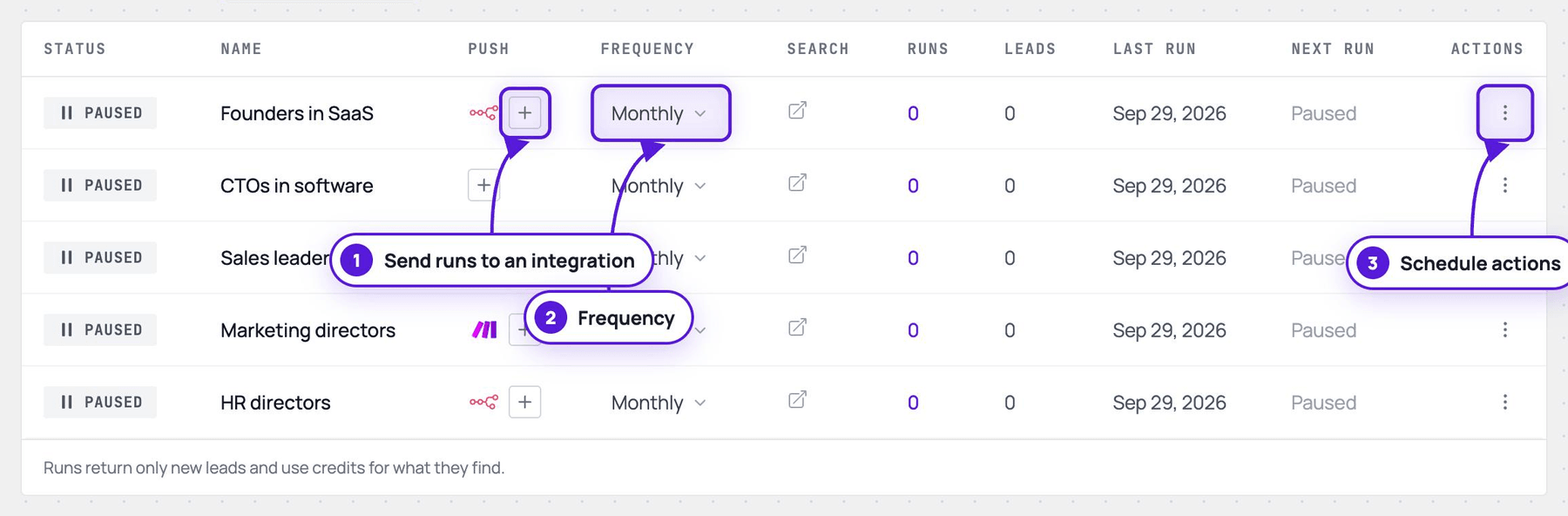
From this tab you can:
- View your active schedules and upcoming runs
- Open the underlying Sales Navigator search
- Send every run to an integration, with the Send runs to an integration button on the row
- Change the frequency from the row
- Rename, pause, resume, or stop a schedule, from the row’s Schedule actions menu. Renaming also renames the export the schedule is based on.
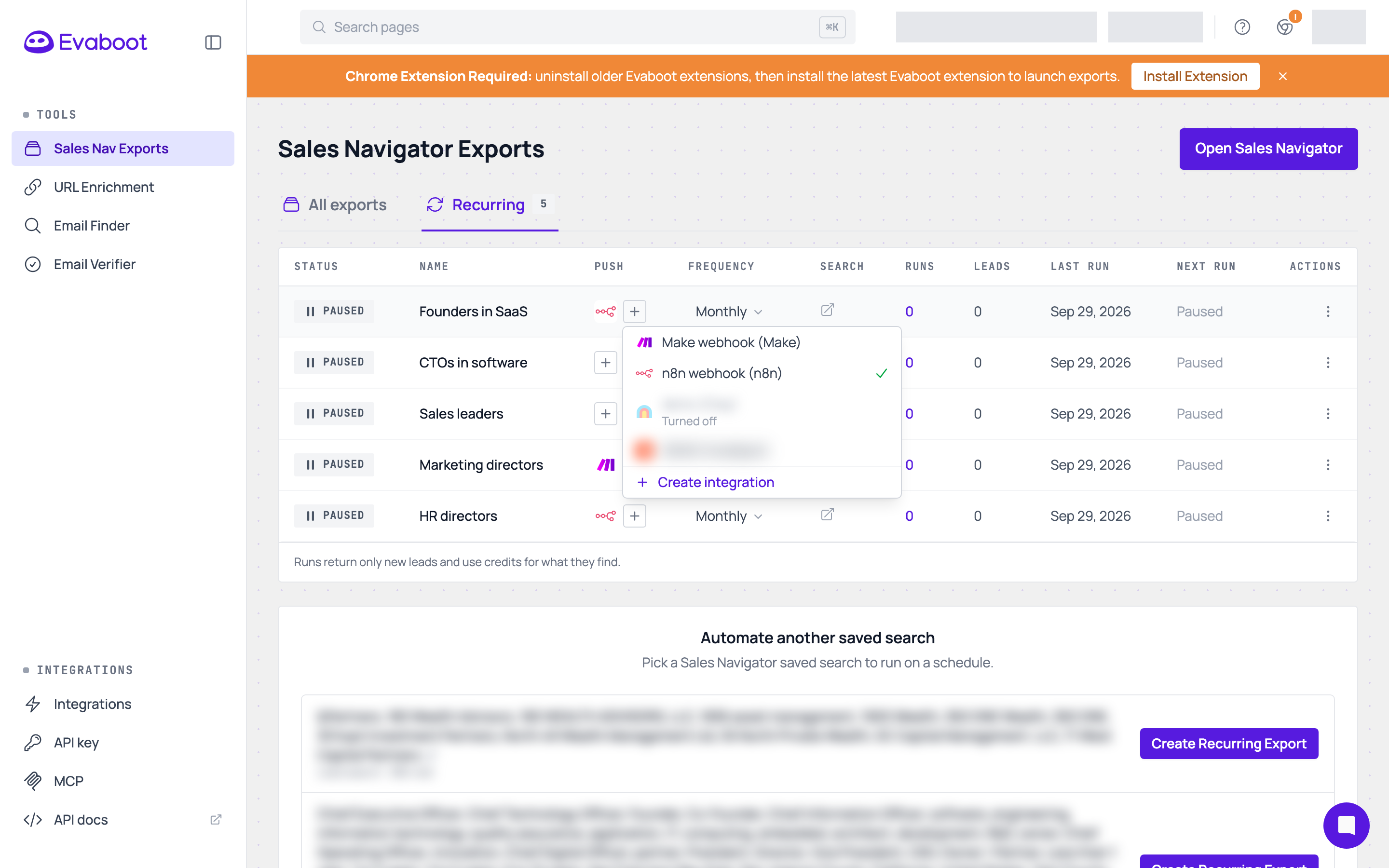
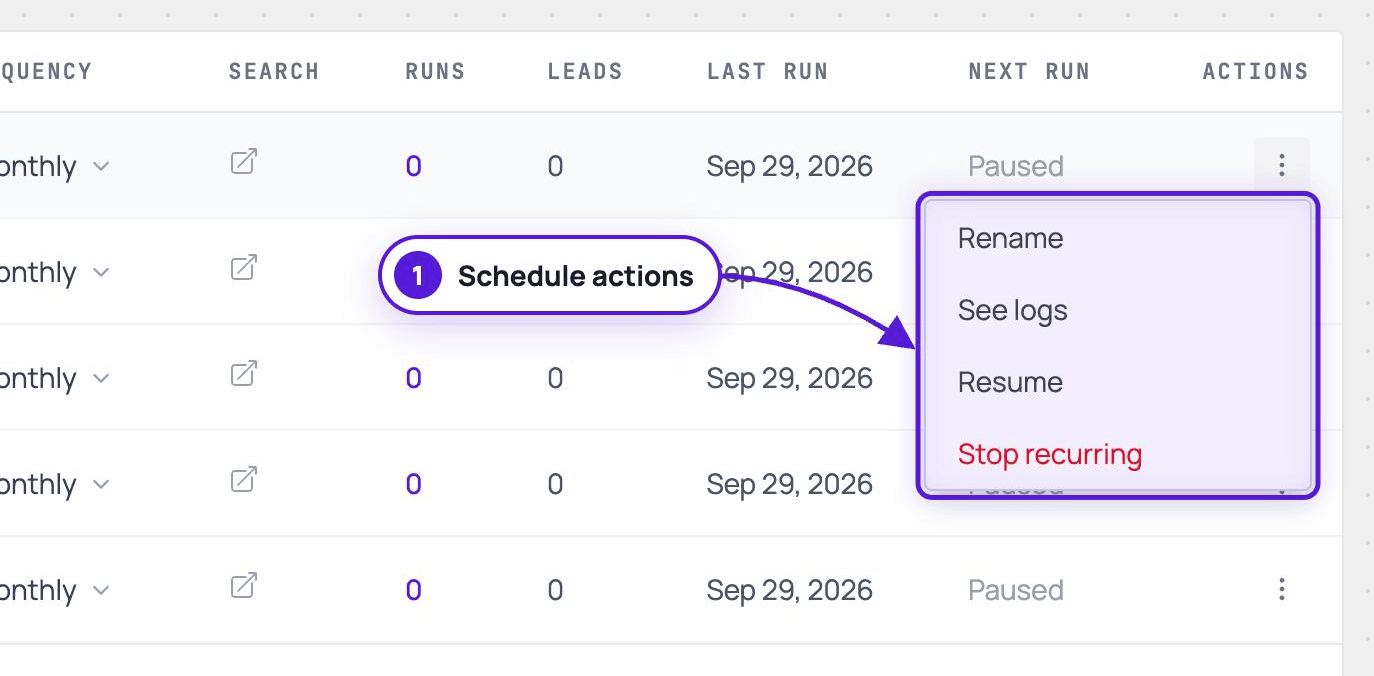
Each completed run lands in All exports like any other export, containing only the new leads.
If it didn’t work
Section titled “If it didn’t work”- No Set up recurring banner — it only shows once a saved-search export is in your list. Export the saved search first; a lead list or an unsaved search never triggers it.
- No Repeat automatically in the row menu — that option only appears on exports launched from a saved search.