
How do I get my Evaboot leads into my CRM?
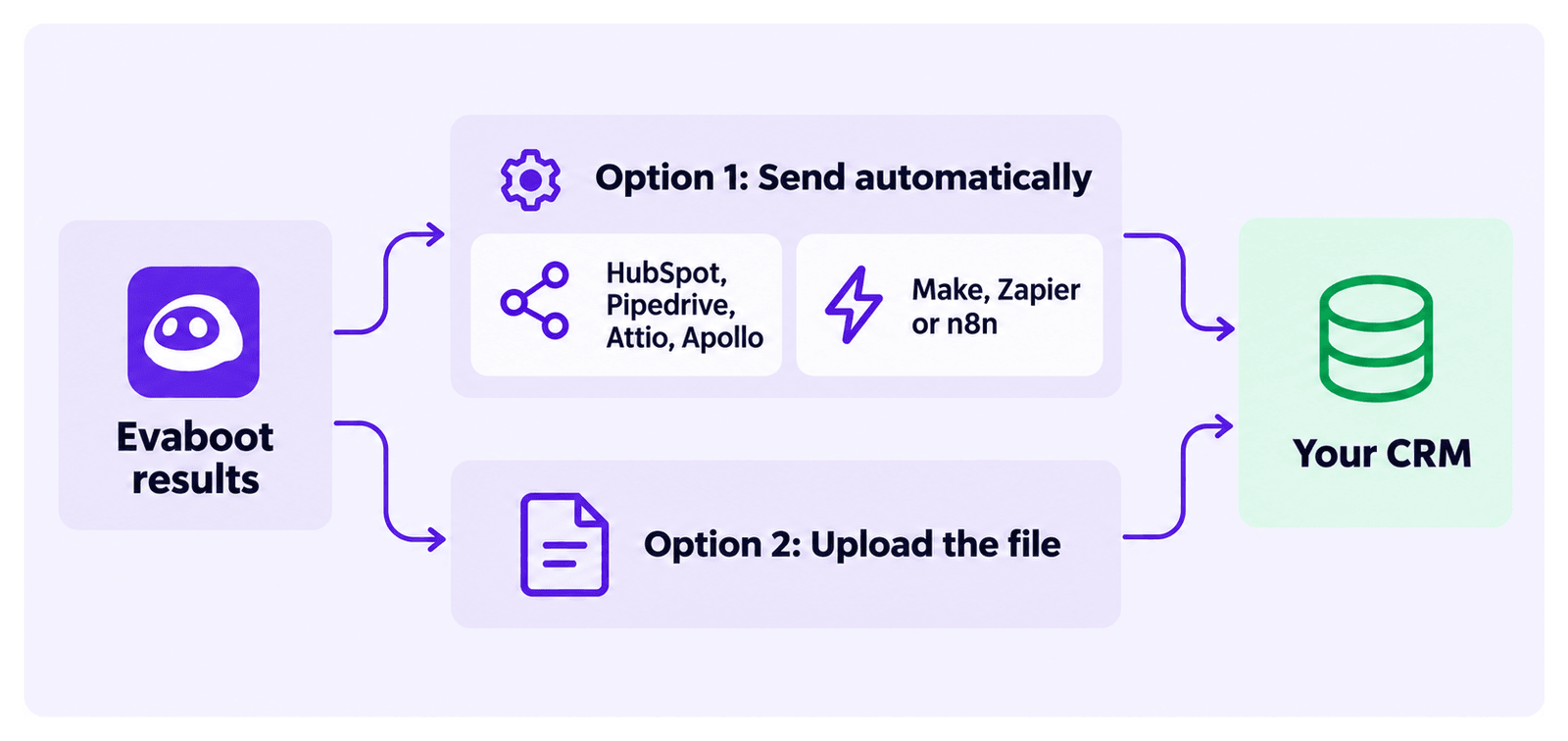
There are two ways to get Evaboot results into your CRM. Send data automatically through an integration, or download the file and import it yourself.
Option 1 — Send data automatically
Section titled “Option 1 — Send data automatically”Evaboot connects directly to HubSpot, Pipedrive, Attio and Apollo. Open the Integrations page and pick your CRM.
For any other CRM, go through Make, Zapier or n8n. If your CRM accepts inbound webhooks, use a Custom integration and point it at your endpoint.
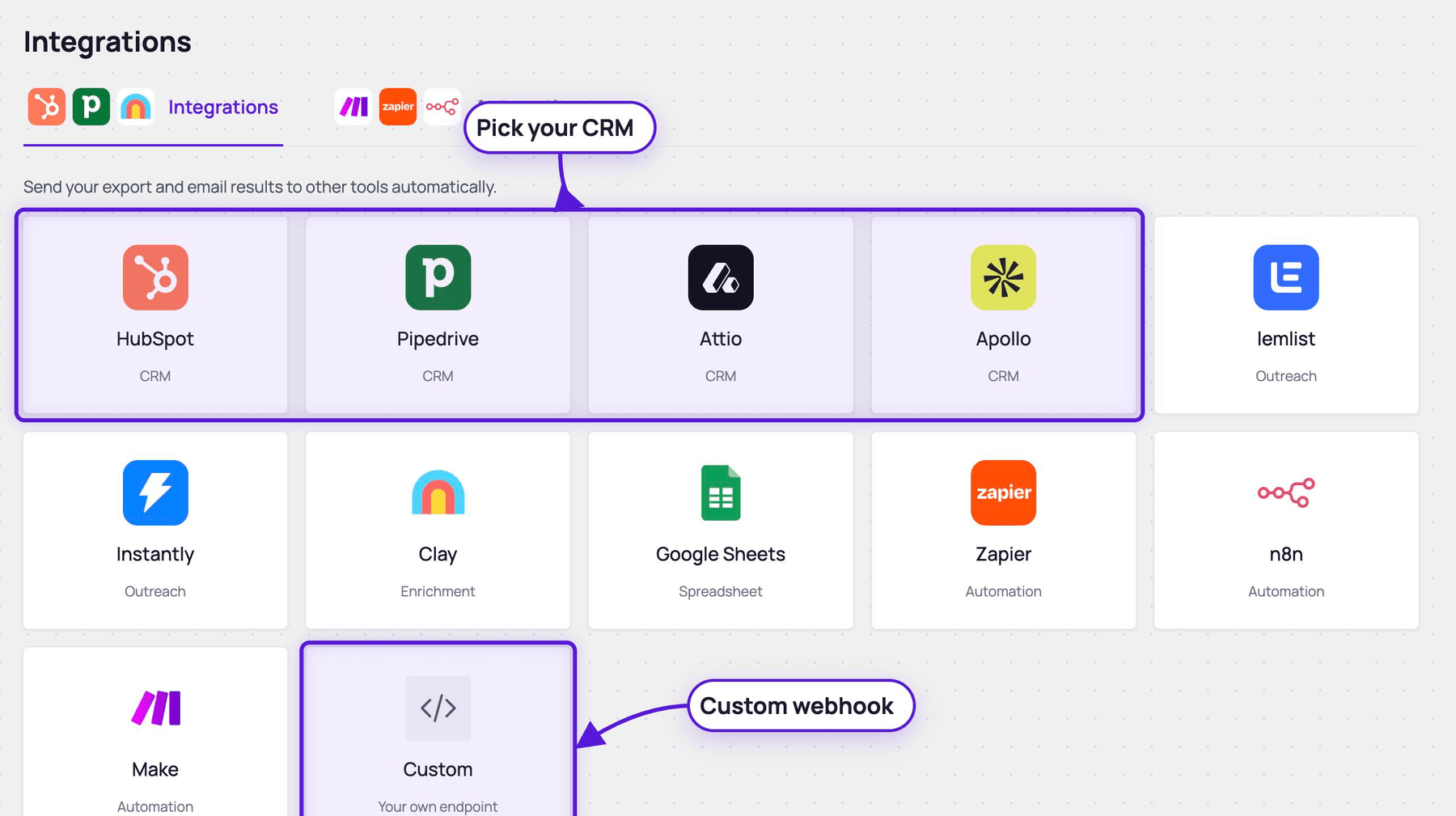
See How Do I Send My Evaboot Results to Other Tools? to pick a route.
Ask us in the chat if you need help setting it up.
Option 2 — Upload the file manually
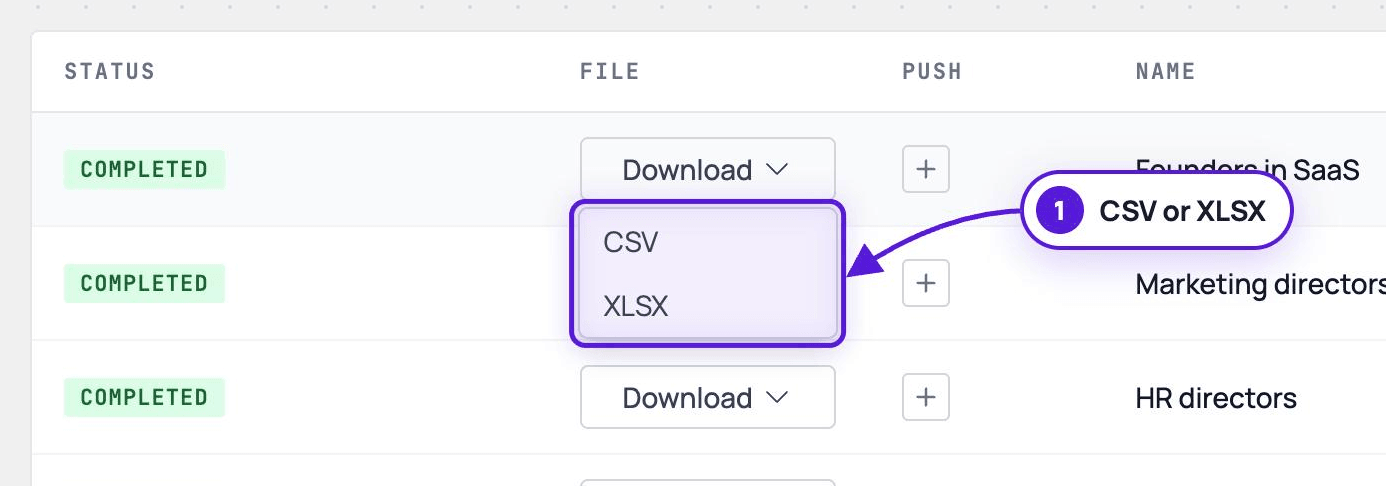
Section titled “Option 2 — Upload the file manually”Download your export from Evaboot (CSV or XLSX), then import it in your CRM. Most CRMs document this:
If your CRM rejects the file
Section titled “If your CRM rejects the file”Some CRM importers are strict about CSV formatting. Re-save the file through Google Sheets: follow Why Is My CSV File All in One Column?, but download it as Comma Separated Values (.csv). If it still fails, contact your CRM’s support.