
How do I send Evaboot results to Make?
Create a custom webhook in a Make scenario, then paste its URL into a new Make integration in Evaboot. Once connected, Evaboot sends your export and email results straight into your Make scenario.
Before you start
Section titled “Before you start”- A Make account where you can create scenarios.
In Make: create the webhook
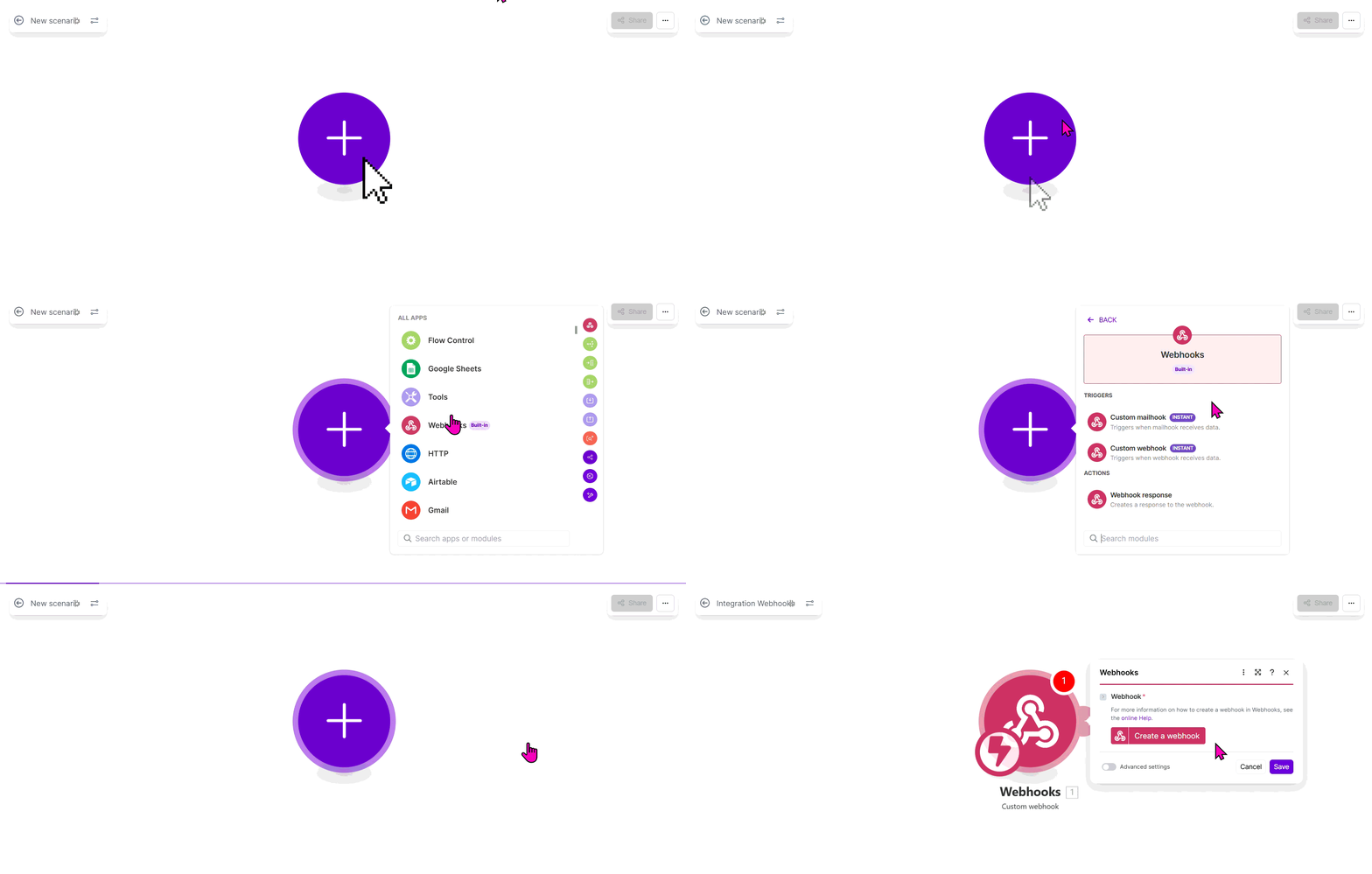
Section titled “In Make: create the webhook”- Create a new scenario in Make.
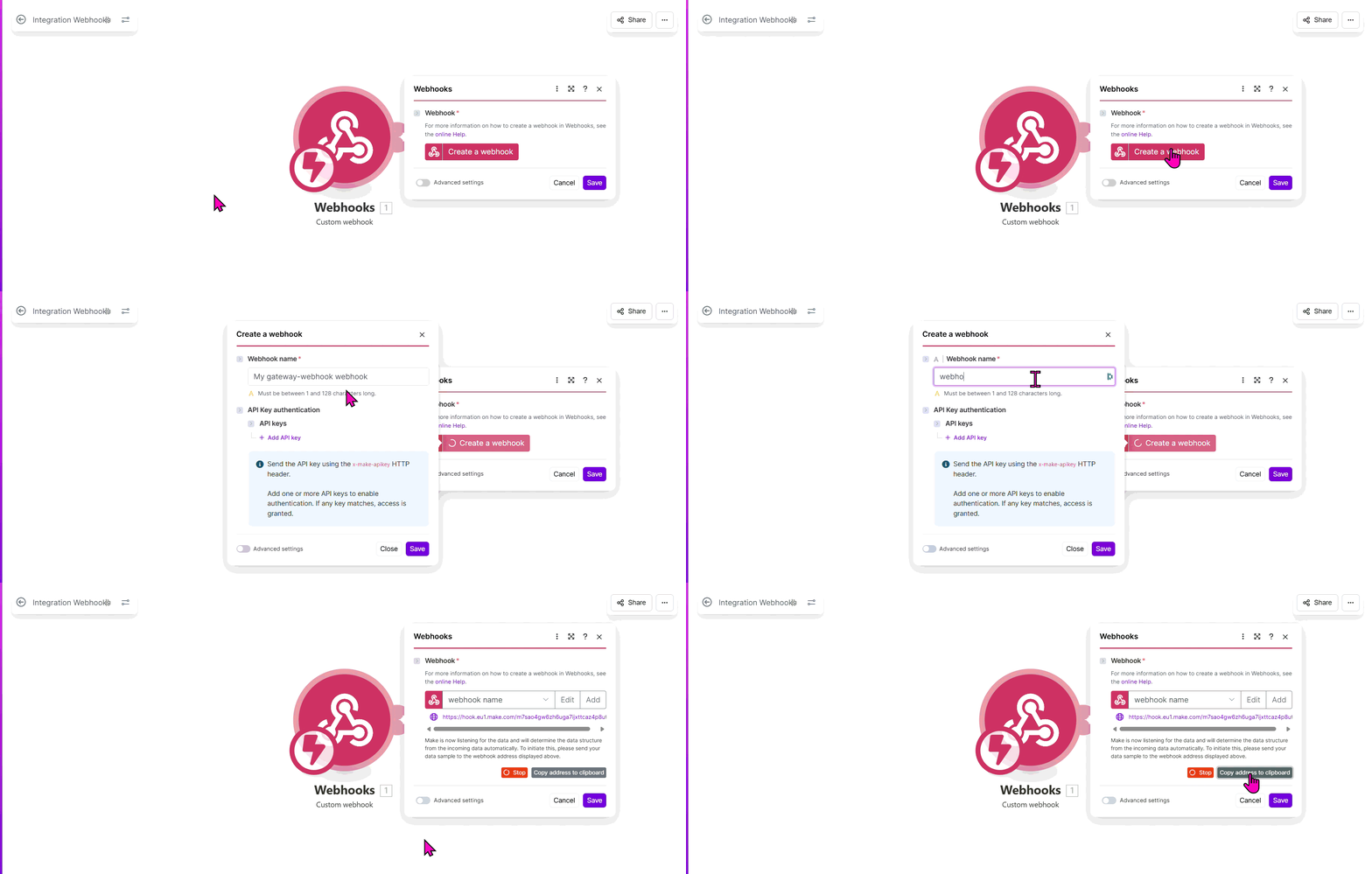
- Add a Webhooks module and choose Custom webhook. Click Add next to the Webhook dropdown and give the webhook a name.
- Copy the webhook URL Make generates.
- Save the scenario and turn it on. Keep the tab open — you’ll come back to map fields after the first delivery.

In Evaboot: connect it
Section titled “In Evaboot: connect it”-
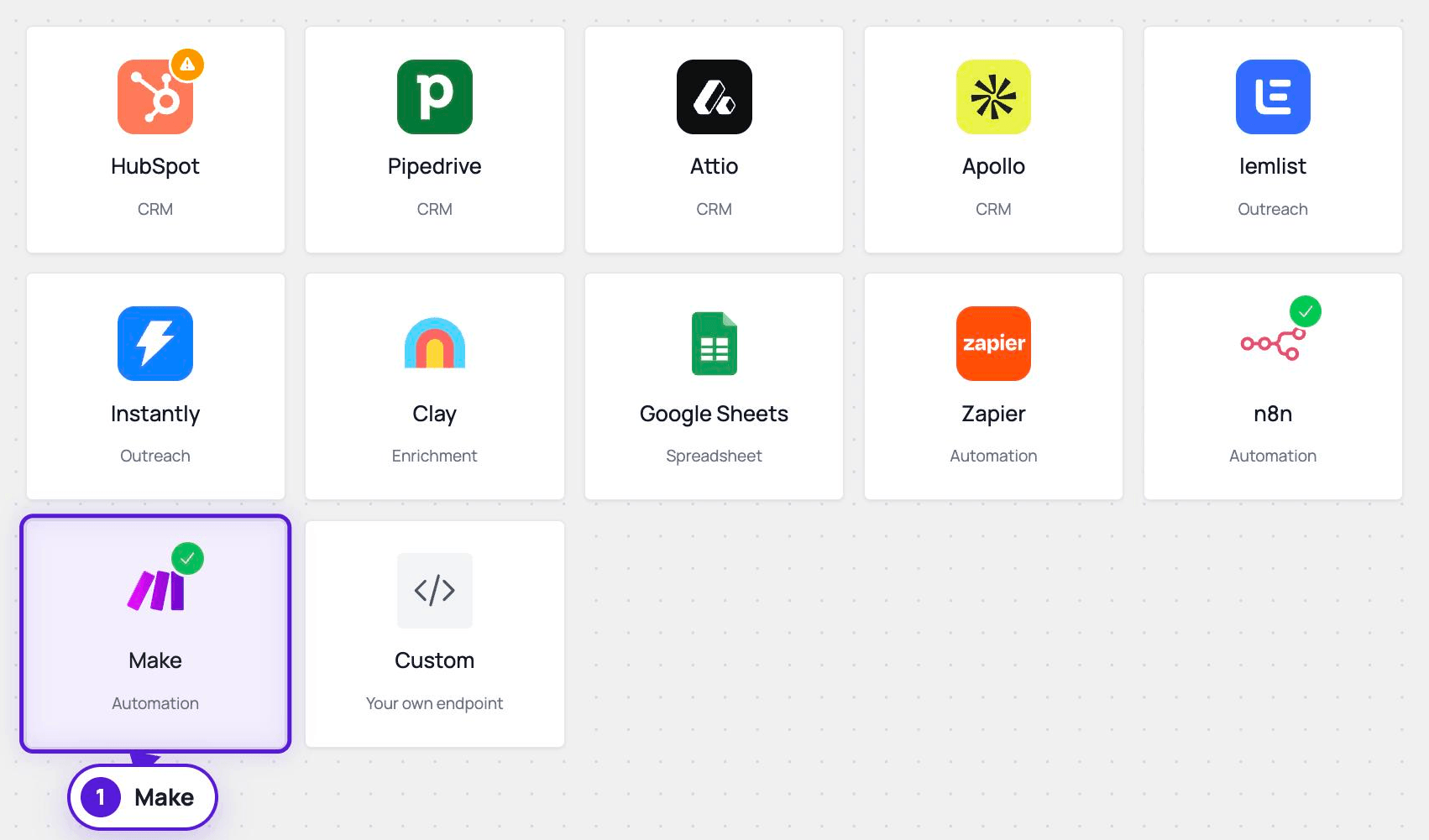
Open Integrations. Stay on the Integrations tab, click New integration, and choose Make.
-
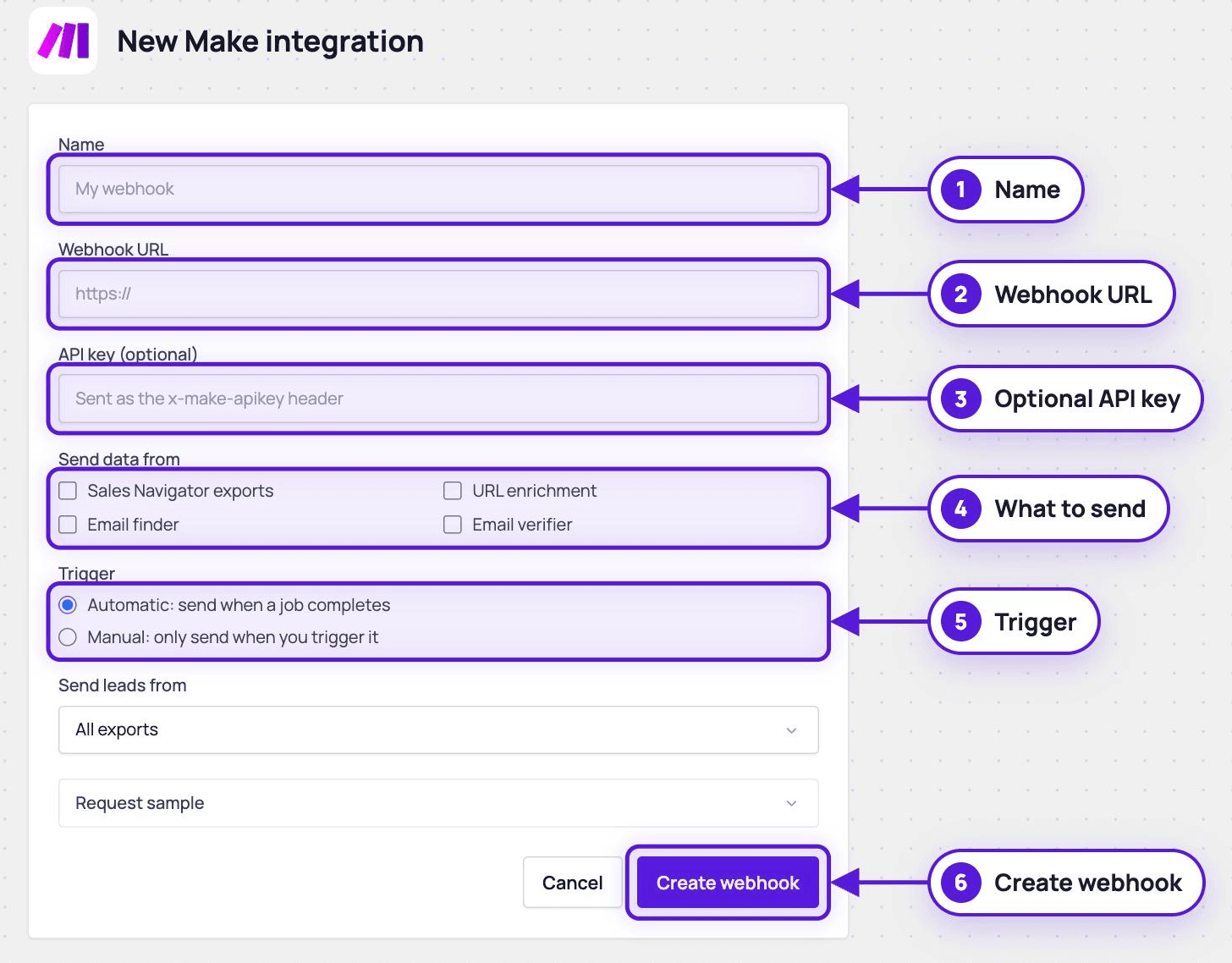
Name the integration and paste the webhook URL.
-
Optional — API key. If you restrict your Make webhook with API key authentication (Make stores the keys in a keychain), enter the same key here. Evaboot sends it as the
x-make-apikeyheader. Leave it empty otherwise. -
Pick what to send.
- Send data from: Sales Navigator exports, URL enrichment, Email finder, Email verifier.
- Send leads from: all exports, all recurring exports, specific recurring exports, or specific folders.
-
Pick the trigger.
- Automatic — sends results as soon as a job completes and is paid. One automatic integration per data type.
- Manual — sends nothing on its own. It delivers when you send a test, or when you click Push this export on a finished export.
-
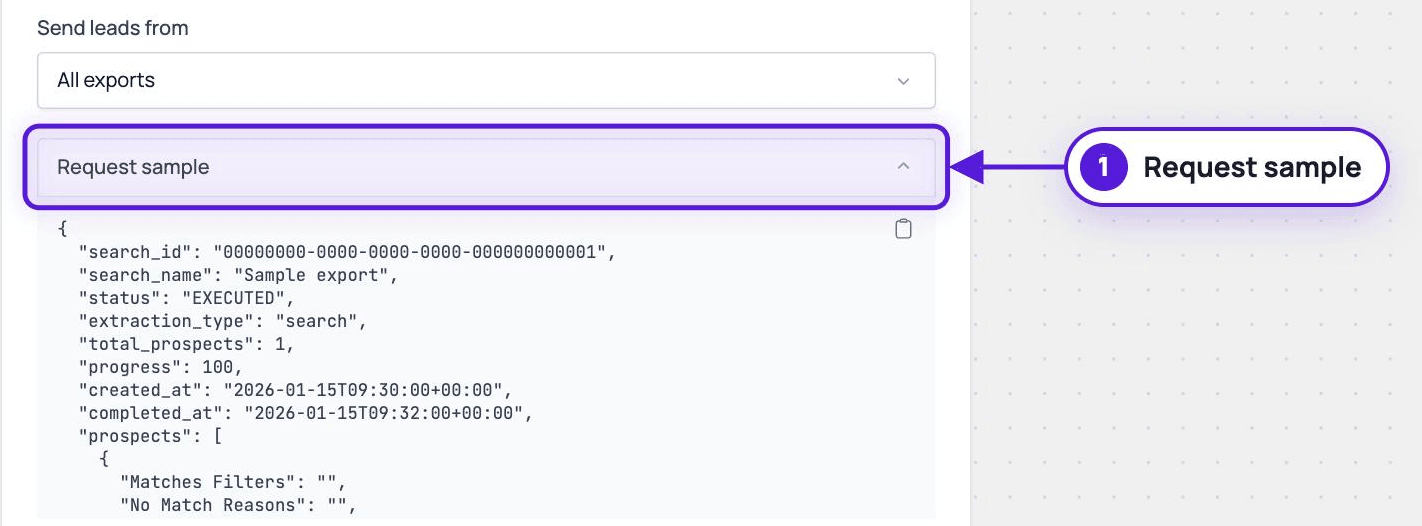
Open Request sample and pick a data type to see the exact JSON Evaboot will post — useful for building the rest of your scenario.
-
Click Create webhook.
Test it
Section titled “Test it”- In Make: click Run once on the scenario so the webhook is listening.
- In Evaboot: open the webhook’s actions menu and click Send test. Evaboot posts a sample payload — fake data, never your real leads.
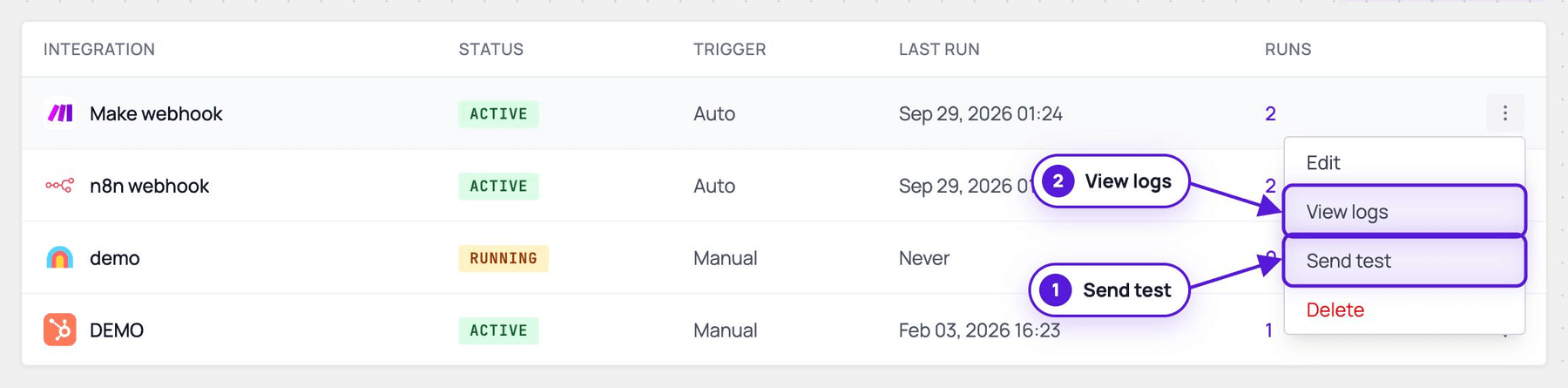 14. In Evaboot: click View logs in the same actions menu. The test delivery shows a
 TEST tag and the HTTP response code.
15. In Make: the received bundle appears. Use it to map fields in the modules you add after the webhook.
If it didn’t work
Section titled “If it didn’t work”- “Non-2xx response or transport failure” — check the logged response code. Confirm the URL is the one Make generated for this webhook.
- Make receives nothing — the scenario must be on (or listening via Run once). The webhook URL must be current — Make regenerates it if you recreate the webhook module.
- 401/403 in the logs — the API key in Evaboot doesn’t match the key configured on the Make webhook.
Another way: the Evaboot Make app
Section titled “Another way: the Evaboot Make app”Instead of a webhook, you can add Evaboot modules to your Make scenarios directly.
- Open Integrations and switch to the Automations tab.
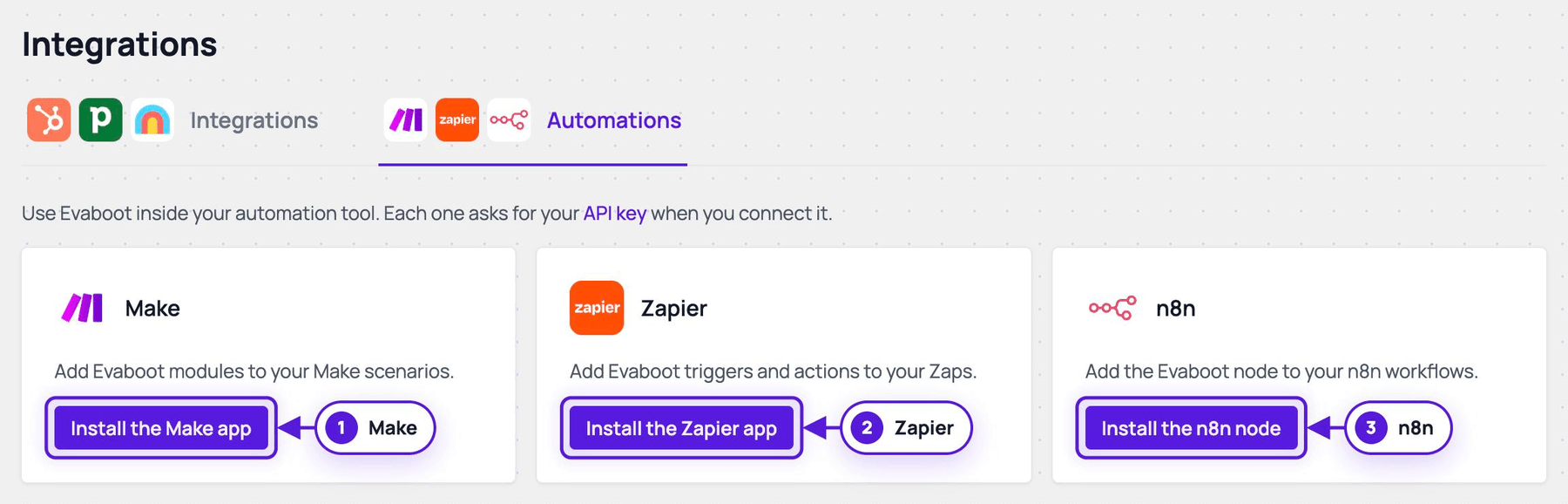
- Click Install the Make app and install it in your Make organization.
- In a scenario, add an Evaboot module — for example Verify an Email. Make asks for your Evaboot API key when you create the connection. Copy it from the API key page.
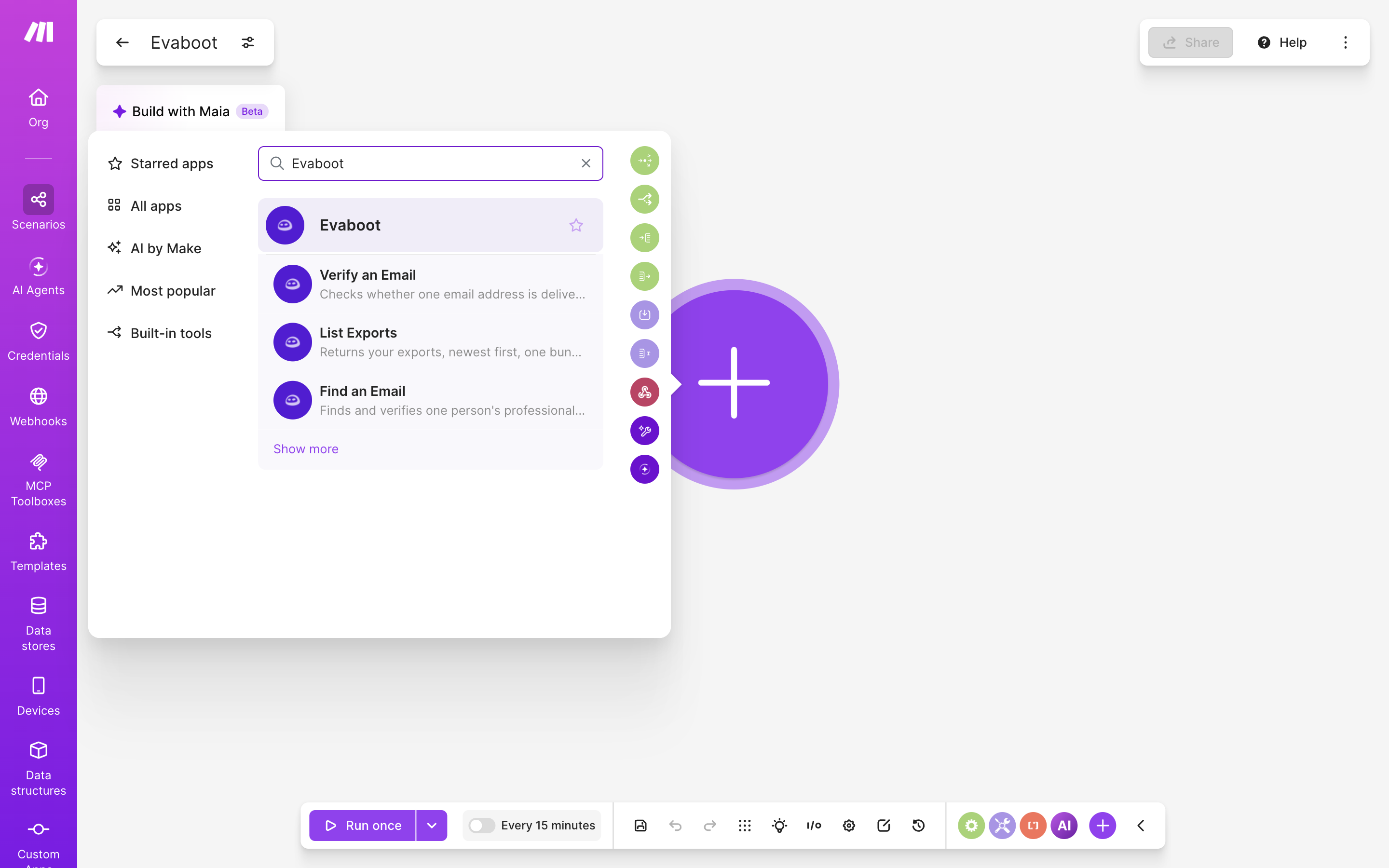
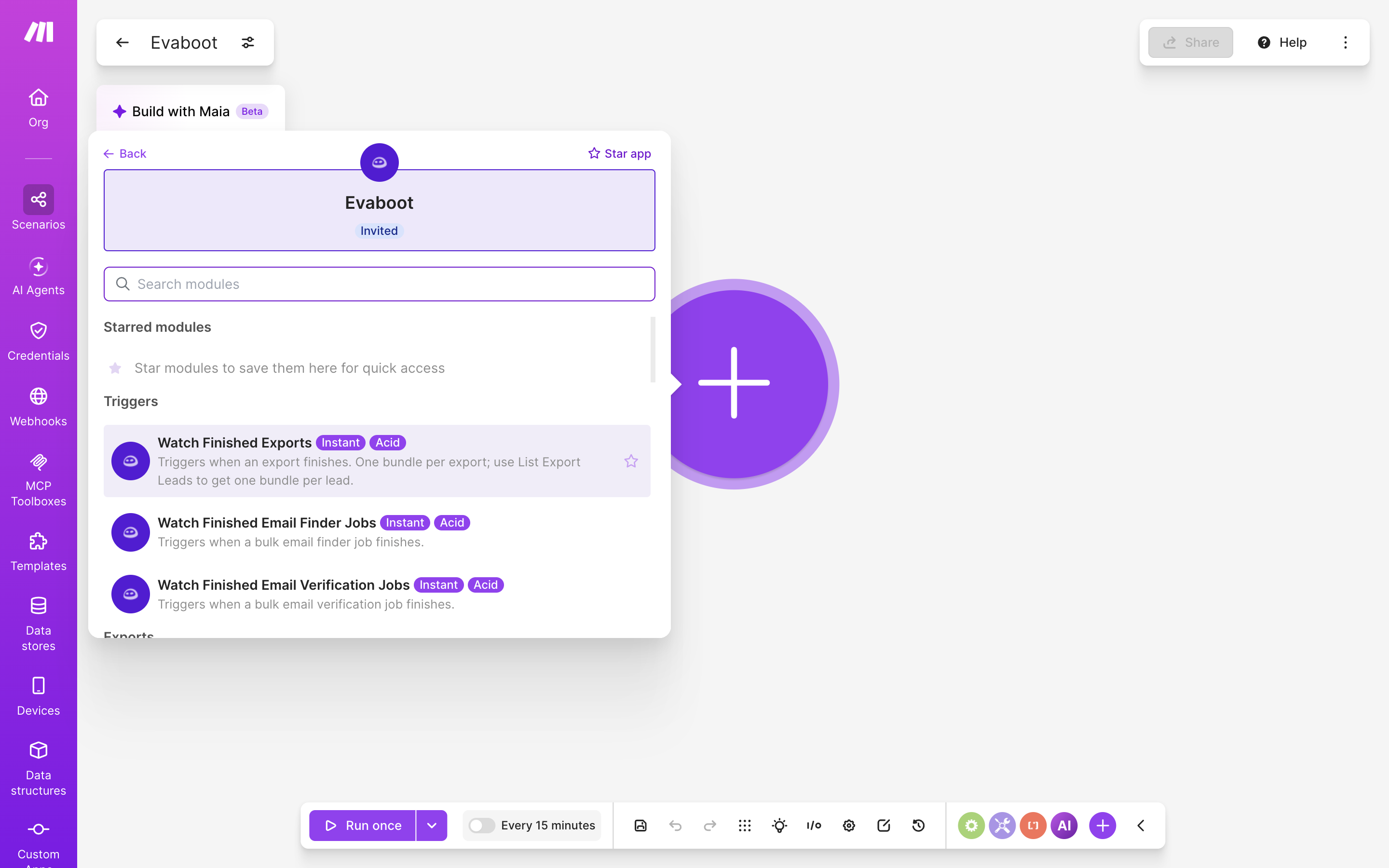
The Evaboot app is not listed in Make’s public app catalog yet, so Make’s AI assistant can’t find it. Install it from the link in step 2 and build the scenario by hand.