
How do I send Evaboot leads to Attio?
Connect your Attio workspace from the Integrations page, then save the integration settings. Evaboot creates or updates people and companies, and never changes record owners.
Before you start
Section titled “Before you start”- An Attio workspace. You sign in to Attio and approve Evaboot’s access on Attio’s own page. No API key is needed.
- Optional: an Attio list if you want every pushed record added to it.
Connect Attio
Section titled “Connect Attio”- Open Integrations and click New integration. If you have no integration yet, the tool cards show on the page directly.
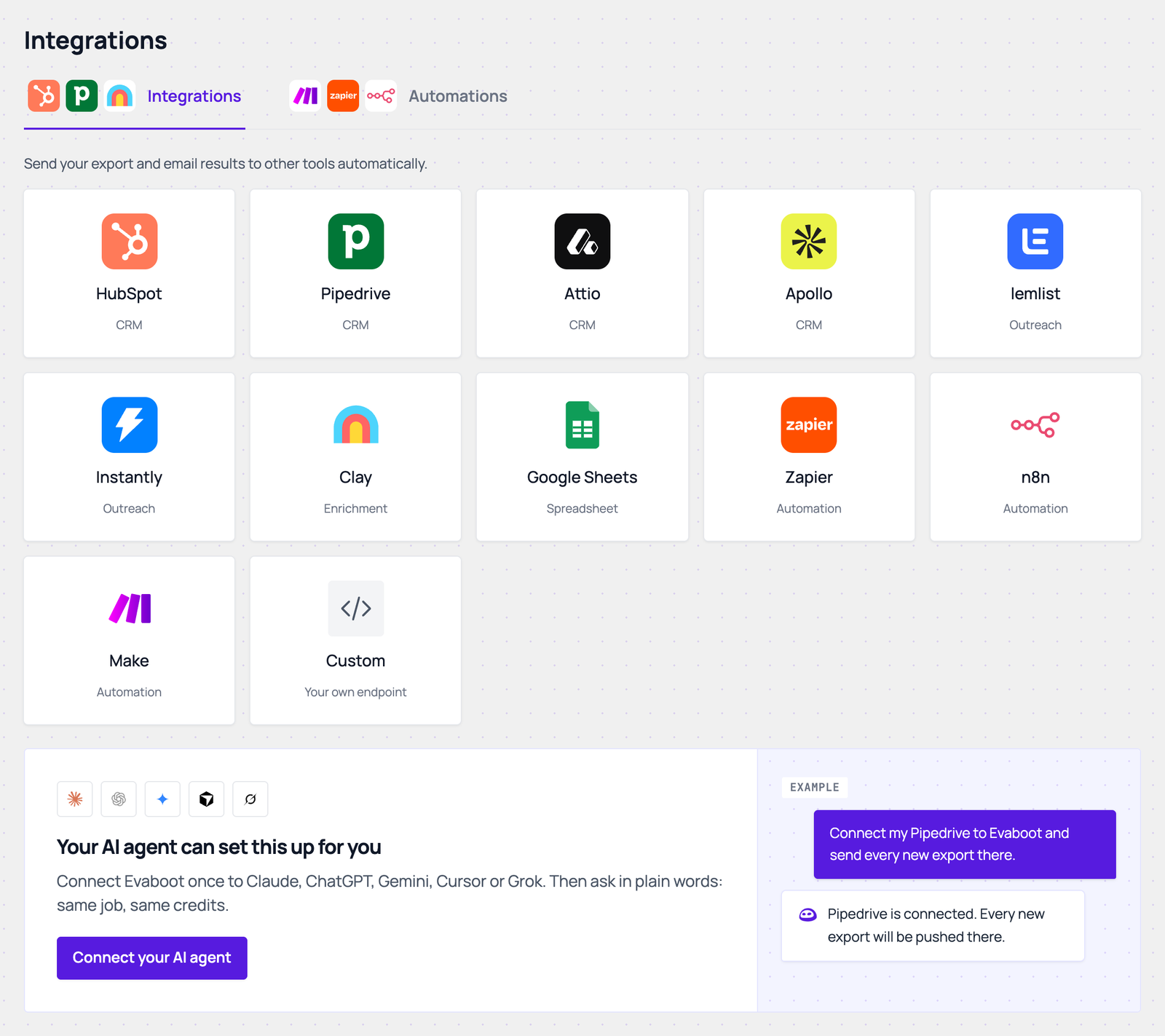
- Click the Attio card, then Connect Attio.
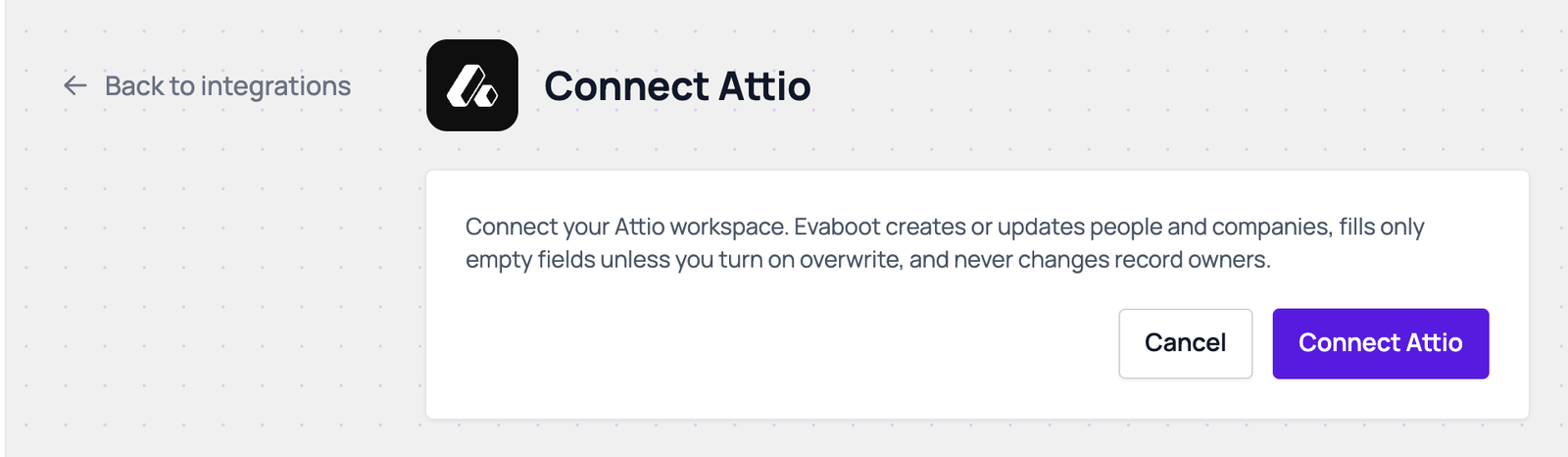
- Approve the access on the Attio page. You come back to the Attio settings page, which shows the workspace you connected.
Choose the settings
Section titled “Choose the settings”- Name the integration.
- Optional: Add people to list. Pick one of your Attio lists, or leave None.
- Pick what to send under Send data from: Sales Navigator exports, URL enrichment, Email finder or Email verifier.
- Set the filters.
- Email filter: All emails, Safe emails only, or Found emails only.
- Qualification filter: All prospects, or Qualified only.
- Pick the trigger.
- Automatic: send when a job completes: each finished, unlocked export is sent. Under Send leads from, choose all exports, all recurring exports, specific recurring exports, or specific folders.
- Manual: only send when you trigger it: nothing is sent until you push an export yourself.
- Optional: Overwrite existing values with Evaboot data. Off, Evaboot only fills empty attributes.
- Click Save. The integration appears on the Integrations page.
What Evaboot sends to Attio
Section titled “What Evaboot sends to Attio”- People with name, email, job title and LinkedIn URL, linked to their company.
- Companies with name, domain and LinkedIn URL. Account exports create companies only.
- Evaboot adds a text attribute called
Evaboot LinkedIn IDon people. It is used to avoid duplicates.
How records are matched:
- People: by email, then by LinkedIn URL, then by
Evaboot LinkedIn ID. - Companies: by domain, then by company LinkedIn URL. By name only when the lead has neither.
- A match is updated, never duplicated. Without overwrite, only empty attributes are filled.
- Emails and domains are added to a record, never replaced. A person’s company link is never changed once set.
- If you picked a list, each record is added to it. A list of companies only takes account exports, and a list of people only takes lead exports. Records still reach Attio when the list type does not match.
Send an export by hand
Section titled “Send an export by hand”On the export list, click + in the Push column of a finished export (Push this export) and pick your Attio integration. The export must be unlocked first. Click the Attio logo in the same cell to see the push log: created, updated, skipped and failed counts.
To send every run of a recurring export, pick the integration under Send new leads to when you set the schedule up.
If it didn’t work
Section titled “If it didn’t work”- “Attio connection was cancelled or failed”: the approval on Attio did not finish. Click Connect Attio again.
- “The Attio connection expired. Reconnect it.” or Reconnect in the Status column: click Reconnect and approve the access again.
- “The Attio list no longer exists.”: open the integration with Edit, pick another list or None, then Save.
- “Attio is not responding”: wait a few minutes and try again.
- Some records failed: open the push log. A failed record shows Attio’s reason. The other records are still sent.